MoreLogin runs separate browser profiles and cloud phones, each with its own fingerprint, so many accounts can live on one computer without sharing cookies or device details. What MoreLogin can’t change is where your traffic comes from. This guide walks through MoreLogin proxy setup with ProxyEmpire: adding a proxy to a browser profile, batch-adding proxies, the fingerprint settings that should match the proxy, cloud phone profiles, and which residential, mobile or static residential proxies to pick for which accounts.
The short version
In MoreLogin, go to Profiles, then Browser, click Edit Proxy on a profile and choose New Proxy. Set the proxy type to HTTP and enter host v2.proxyempire.io, port 5000 and your ProxyEmpire proxy username and password. Set time zone and language to Match IP and geolocation to generate from the IP, and give each profile its own sticky session. To add many proxies at once, use Batch Add with one sticky session per line.
Why MoreLogin Needs a Proxy
The browser is isolated, the connection is notMoreLogin is an anti-detect browser and cloud phone platform for people who manage many accounts: sellers with several marketplace stores, agencies running client ad accounts, and social media teams. Each browser profile gets its own fingerprint and its own storage, so one account’s cookies and device details never touch another’s. MoreLogin also offers team permissions, so several people can work on the same set of profiles.
All of that sits on top of one network connection. Without a proxy, every profile reaches the internet from your own IP address, and a platform that sees several accounts on the same address can link them however well their fingerprints are separated. A proxy gives each profile its own IP, in the country, city or network the account belongs to.
The type of IP matters as much as having one. Residential IPs come from real home connections and blend in with ordinary users. Mobile IPs come from 4G carrier networks, where one address is shared by many real subscribers, so platforms rarely block them outright; that makes them the safest option for social and app-based accounts. Datacenter IPs are fast and cheap, but platforms recognise hosting ranges quickly, so they belong on scraping tasks rather than accounts you want to keep.
Before you start
- MoreLogin installed, with at least one browser or cloud phone profile.
- A ProxyEmpire account with bandwidth. The $1.97 trial includes 100 MB of residential and 50 MB of mobile bandwidth, which is plenty for testing a few profiles.
- Your ProxyEmpire proxy username and password, which you’ll find in the Proxy Manager.
Step 1: Get Your ProxyEmpire Proxy Details
Choose the location and session firstIn the ProxyEmpire dashboard, open the Proxy Manager, where the Connection Builder is, and pick the product. Rotating residential and rotating mobile proxies can be targeted by country, region or state, city, ZIP code, ISP (carrier on mobile), ASN and OS fingerprint, and none of that costs extra. Static residential and datacenter proxies are targeted by country.
Then decide how long each IP should last:
- Sticky session (Same IP in the Connection Builder) keeps one IP with no fixed time limit. It stays until you rotate it or the device behind it goes offline. Every MoreLogin profile you log in to should use one.
- Rotating (Every request) changes the IP on every request, which suits data collection but not logged-in accounts.
- Custom rotation (Custom TTL) swaps the IP on a timer you choose, up to two hours.
Whatever you choose, the host is v2.proxyempire.io and the port is 5000. The location and session are encoded in the proxy username, so switching city or starting a new session only changes the username. ProxyEmpire uses username and password authentication; you don’t need to whitelist your IP.
Proxy type       HTTP
Proxy host       v2.proxyempire.io
Proxy port       5000
Proxy account    your ProxyEmpire proxy username (includes targeting + session)
Proxy password   your ProxyEmpire proxy password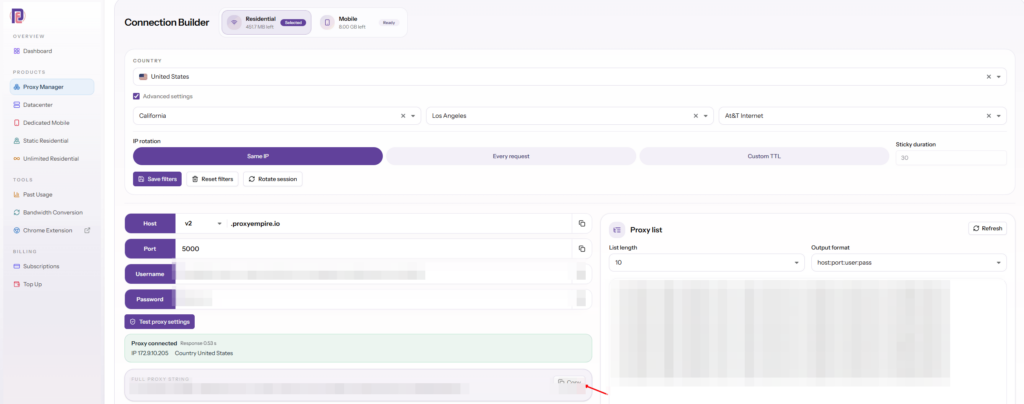
Step 2: Add the Proxy to a MoreLogin Browser Profile
New Proxy, HTTP, test- Find the profileIn the left panel, click Profiles, then Browser, and click Edit Proxy on the profile. For a new profile, use New Profile, then Browser Profile, then Advanced Settings.
- Choose New ProxyThis is where you add a proxy from your own provider rather than one bought inside MoreLogin.
- Set the typePick HTTP or SOCKS5, which use the same ProxyEmpire details. ProxyEmpire also supports HTTPS, and MoreLogin supports SSH too.
- Enter the detailsFill in the host, port, account and password from the Proxy Manager.
- Test and saveRun MoreLogin’s proxy check. When it shows the exit IP and its location, save the profile.
HTTP is the easiest choice and it works for every website, including HTTPS ones, because the browser tunnels encrypted traffic through the proxy. SOCKS5 works too, with the same host, port and credentials. The Refresh URL field is only for mobile proxies that change IP through a link; with ProxyEmpire you get a new IP by starting a new sticky session, so leave it empty.
MoreLogin can look up the IP’s location through several IP query channels: IP2location, MaxMind, DB-IP and IP-API. They don’t always agree on the exact city, so if a profile shows a neighbouring town, try another channel before assuming the proxy is wrong.
MoreLogin Fingerprint Settings to Match the IP
Let the proxy decide location detailsA profile’s fingerprint should tell the same story as its IP. A browser that reports a Paris timezone while connecting from a Dallas IP is an easy flag. MoreLogin’s profile settings can take these values from the proxy:
- Time zone: choose Match IP rather than Custom.
- Language: Match IP uses a language for the proxy’s location. Use Custom only when the account’s real owner would browse in a different language.
- Geolocation: under Consultation, choose to generate the geolocation based on the IP, or Disable it.
- WebRTC: MoreLogin offers Forward, Privacy, Replace, Authentic and Disable. Pick one of the masking modes and avoid Authentic, which shows your real network details.
WebRTC needs attention with any HTTP or SOCKS5 proxy: calls and peer-to-peer features use UDP, and ProxyEmpire carries TCP traffic only, so a masked WebRTC mode is what stops that traffic from revealing your own IP.
Batch-Adding MoreLogin Proxies
Up to 100 per batchFor more than a few profiles, add proxies to MoreLogin’s proxy list in one go. Open the proxy list page, click Add Proxy at the top right and choose Batch Add. Each line is one proxy, and you can add up to 100 at a time, in either of these formats:
http://v2.proxyempire.io:5000:username-for-session-1:password
http://v2.proxyempire.io:5000:username-for-session-2:password
http://username-for-session-3:password@v2.proxyempire.io:5000
MoreLogin’s documentation says a line without a type is added as SOCKS5. That works with ProxyEmpire too, because HTTP and SOCKS5 use the same host, port and credentials, but the prefix keeps the protocol explicit. The usernames shown are placeholders: the Proxy list panel in ProxyEmpire’s Connection Builder generates real ones, one sticky session per line, so every profile gets a different IP. Once the list is saved, assign a proxy to each profile from the list.
MoreLogin Proxy Settings for Cloud Phones
Same details, set on the phone profileMoreLogin’s cloud phone profiles are remote Android devices with their own proxy settings. Go to Profiles, then Cloud Phone Profiles, and click Edit Proxy on the phone, or add the proxy while creating a new cloud phone profile. The fields are the same as for a browser profile.
For cloud phones, rotating mobile proxies on a sticky session are the natural match: a phone profile on a real carrier IP is what mobile apps expect. If you need one mobile IP reserved for a single device, see our dedicated 4G mobile proxies.
Which ProxyEmpire Proxy to Use with MoreLogin
Pick by account, not by price| Rotating residential | Rotating mobile | Static residential | |
|---|---|---|---|
| IP source | Home broadband | 4G carrier networks | Residential ISP ranges |
| Set up in MoreLogin as | One sticky session per profile | One sticky session per profile or phone | One IP per profile |
| Targeting | Country to ZIP, ISP, ASN | Country to ZIP, carrier, ASN | Country |
| Best for | Marketplace stores, ad accounts, most web accounts | Social media, cloud phones, app accounts | Accounts that must always use one IP |
| Price | $3.50/GB, down to $1.50/GB | $4.50/GB, down to $2.00/GB | $3.50 for one IP, down to $2.00/IP a month |
Most MoreLogin users start with rotating residential proxies and one sticky session per profile. Mobile is worth the higher price for platforms that are strict with new or app-based accounts, and for every cloud phone. Static residential suits an account that should look like it never moves, and is sold in 24 countries. All three share one ProxyEmpire account, and bandwidth you don’t use rolls over.
Keep accounts from being linked
- Never share a session between accounts on the same platform. One IP behind two accounts links them.
- Keep each account’s location stable. Same country, ideally the same city, every login.
- Replace a dropped IP locally. If a sticky IP goes offline, open a new session in the same city instead of moving the account.
- Don’t target too narrowly. A small town with one ISP may have very few IPs; city or state is usually enough.
Troubleshooting a MoreLogin Proxy
Common problems and fixes| Problem | Likely cause and fix |
|---|---|
| Batch-added proxies fail | Check the line format: type://host:port:account:password or type://account:password@host:port, one proxy per line, no spaces. If the sessions are old, generate fresh usernames in the Proxy list panel. |
| Single proxy fails its check | Usually a typo, a stray space or an old password. Copy the details again from the Proxy Manager. |
| It worked yesterday | Check your bandwidth balance, and whether you changed the targeting, which changes the username. |
| The IP changed during a session | The profile has a rotating username, or the device behind the sticky IP went offline. Use sticky sessions and start a new one in the same city. |
| Location shows a different city | IP query channels disagree. Compare two channels before changing anything. |
| One website won’t open | Some site categories are restricted on ProxyEmpire by default, including banks, payment processors such as PayPal and Stripe, and crypto exchanges, and only ports 80 and 443 are open. Access can be reviewed after KYC and a use-case explanation to support. |
ProxyEmpire’s support team is available 24/7 through live chat in the dashboard if you need a hand. Using another anti-detect browser as well? The same details work there; see our AdsPower proxy setup guide.
MoreLogin Discount Code
For ProxyEmpire customersProxyEmpire users get 20% off MoreLogin with the promo code PROXYEMPIRE20. Sign up for MoreLogin here and enter the code at checkout.
MoreLogin Proxy FAQ
Straight answersWhat is the best proxy for MoreLogin?
Rotating residential proxies with one sticky session per profile work for most MoreLogin accounts. Use rotating mobile proxies for social media, app accounts and cloud phones, and static residential proxies when an account must keep one IP long term.
How do I set up a proxy in MoreLogin?
Go to Profiles, then Browser, click Edit Proxy on a profile and choose New Proxy. Select HTTP, enter v2.proxyempire.io, port 5000 and your ProxyEmpire proxy username and password, then run the proxy check and save.
What format does MoreLogin Batch Add use?
One proxy per line, as type://host:port:account:password or type://account:password@host:port, for example http://v2.proxyempire.io:5000:username:password. A line without a type is added as SOCKS5, which also works with ProxyEmpire.
How many proxies can I add to MoreLogin at once?
MoreLogin’s Batch Add accepts up to 100 proxies at a time, one per line.
Does MoreLogin support SOCKS5?
Yes. MoreLogin supports HTTP, HTTPS, SOCKS5 and SSH. ProxyEmpire supports HTTP, HTTPS and SOCKS5; HTTP and SOCKS5 use the same host, port, username and password.
Can I use ProxyEmpire with MoreLogin cloud phones?
Yes. Cloud phone profiles have their own proxy settings: open Profiles, then Cloud Phone Profiles, and click Edit Proxy. Rotating mobile proxies on a sticky session are the best fit.
Is there a MoreLogin discount code?
Yes. ProxyEmpire users get 20% off MoreLogin with the code PROXYEMPIRE20.
Can I try ProxyEmpire with MoreLogin first?
Yes. The $1.97 trial includes 100 MB of residential and 50 MB of mobile bandwidth, and unused trial bandwidth doesn’t expire.
References
Primary documentation- MoreLogin Help Center — Self-owned proxy settings. support.morelogin.com/en/articles/10204320-self-owned-proxy-settings
- MoreLogin Help Center — Add proxy (Batch Add and formats). support.morelogin.com/en/articles/10204324-add-proxy
- MoreLogin Help Center — Proxy management. support.morelogin.com/en/articles/10204323-proxy-management
- MoreLogin Help Center — Profile settings (time zone, language, geolocation, WebRTC). support.morelogin.com/en/articles/10204297-profile-settings
Put every MoreLogin profile on its own IP
Residential, 4G mobile and static residential proxies with city, ZIP, ISP and carrier targeting included, a sticky session for each profile, bandwidth that rolls over and 24/7 support from real people. Try it for $1.97.