Sphere, better known as Linken Sphere, is an anti-detect browser that organises work into sessions: each session has its own fingerprint, cookies and storage, and can run on its own proxy. That last part is what keeps accounts truly separate. This guide covers Sphere browser proxy setup with ProxyEmpire: the four places you can add a proxy, the proxy manager and its CHECK PROXY & GEO button, importing proxy lists, and why residential, mobile and static residential proxies each suit different sessions.
The short version
In Linken Sphere, add a proxy in the Connection block when you create a session, or in the proxy manager from the Proxy icon at the top right. Choose HTTP or SOCKS5, enter v2.proxyempire.io:5000:username:password and click CHECK PROXY & GEO; when it turns green, the IP and location are confirmed. Use one sticky session per Sphere session, and presets to apply proxy settings to many sessions at once.
Why Sphere Browser Needs a Proxy
Sessions isolate the browser, not the networkLinken Sphere is built around sessions. Each session is an isolated browser environment with its own fingerprint, cookies and local storage, and sessions can be organised across desktops and created from presets. It is used for multi-account work where accounts must not be linked: advertising, e-commerce, affiliate marketing and social media.
A session’s fingerprint says nothing about where its traffic comes from. If every session connects through your own line, a platform sees many accounts on one IP address, which is one of the simplest ways to link them. A Sphere browser proxy gives each session its own IP in the country, city or network that fits the account, so the network story matches the fingerprint story.
Residential IPs from real home broadband suit most accounts. Mobile IPs from 4G carrier networks are shared by many genuine subscribers, so platforms are cautious about blocking them, which makes them the strongest option for social media and app-based accounts. Datacenter IPs are cheap and fast but easy to identify, so keep them for scraping rather than accounts.
What you need
- Linken Sphere installed and signed in.
- A ProxyEmpire account with bandwidth. The $1.97 trial includes 100 MB of residential and 50 MB of mobile bandwidth.
- One sticky session planned for each Sphere session that holds an account.
Step 1: Get Your ProxyEmpire Proxy Details
Targeting and session live in the usernameIn the ProxyEmpire dashboard, open the Proxy Manager to reach the Connection Builder. Choose Residential or Mobile and a country, and use the advanced settings for a region, city or ISP (carrier on mobile). Residential and mobile can also be targeted by ZIP, ASN and OS fingerprint, all included in the price. Static residential and datacenter proxies are targeted by country.
Set the IP rotation:
- Same IP is a sticky session with no fixed time limit: the IP stays until you rotate it or the device behind it goes offline. Use it for every Sphere session with a logged-in account.
- Every request rotates on each request, for data collection sessions only.
- Custom TTL rotates on a timer you set, up to two hours.
The builder shows host v2.proxyempire.io, port 5000, your username and password, a Test proxy settings button and a full proxy string you can copy. Because location and session are part of the username, every sticky session is a different username with the same host, port and password. ProxyEmpire supports HTTP, HTTPS and SOCKS5, HTTP and SOCKS5 both use these details, and ProxyEmpire authenticates by username and password rather than a whitelisted IP.
Protocol   HTTP or SOCKS5
Proxy      v2.proxyempire.io:5000:username:password

Split out:
Host       v2.proxyempire.io
Port       5000
Login      your ProxyEmpire proxy username (includes targeting + session)
Password   your ProxyEmpire proxy password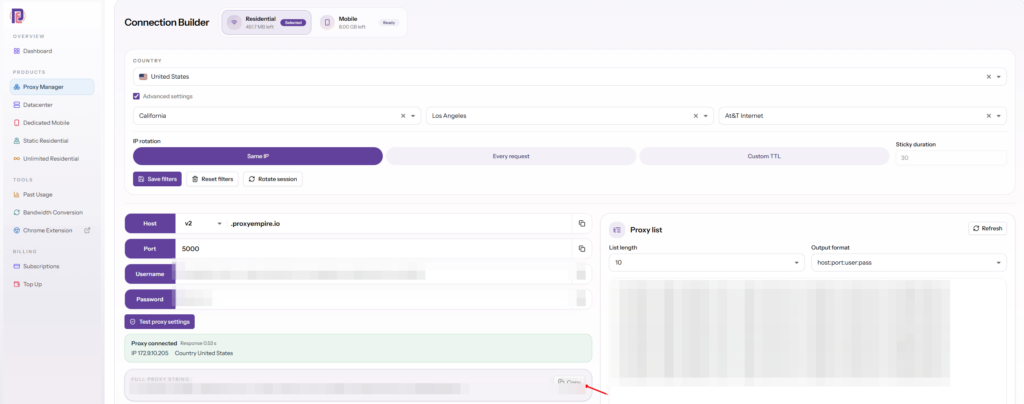
Step 2: Add the Proxy to a Sphere Session
The Connection block in New session- Create a sessionOpen the New session window.
- Go to ConnectionFind the Connection block, where the session’s proxy is set.
- Pick the protocolChoose HTTP or SOCKS5. Both work with the same ProxyEmpire details.
- Enter the proxyPaste the full proxy string, or fill in host, port, login and password.
- Check itClick CHECK PROXY & GEO. When it turns green, the current IP and its location are shown.
CHECK PROXY & GEO does two jobs: it confirms the proxy connects, and it looks up the IP’s geolocation so the session’s location details can match it. Run it again whenever you change a session’s proxy.
HTTP is fine for every website, including HTTPS ones, because the browser tunnels encrypted traffic through the proxy. Linken Sphere also offers a Live mode for dynamic proxies and supports SSH; neither is needed with ProxyEmpire, where you get a fresh IP by starting a new sticky session and updating the session’s proxy.
After the session opens, confirm on an IP-check page that the country, region and timezone line up with your targeting. A neighbouring town is normal, since IP-location databases disagree about exact cities. Also make sure WebRTC shows the proxy’s address or nothing; browsers don’t send WebRTC’s UDP traffic through an HTTP or SOCKS5 proxy, so WebRTC’s peer-to-peer traffic must be masked.
The Sphere Proxy Manager and Imports
Keep every proxy in one listLinken Sphere’s proxy manager opens from the Proxy icon in the upper-right corner of the toolbar. It holds your proxies in one place and runs CHECK PROXY & GEO automatically when proxies are added or re-checked. For lists, it supports bulk checking, deleting, exporting to a file, removing duplicates and cloning proxies between desktops.
Linken Sphere reads lists in the standard host:port:login:password layout, one per line, which is exactly how ProxyEmpire’s Proxy list panel exports them.
v2.proxyempire.io:5000:username-for-session-1:password
v2.proxyempire.io:5000:username-for-session-2:password
v2.proxyempire.io:5000:username-for-session-3:password
The usernames are placeholders. In ProxyEmpire’s Connection Builder, the Proxy list panel generates real ones: set the list length, choose the host:port:user:pass output format and copy. Each line is its own sticky session, so each Sphere session gets its own IP.
Use the duplicate-removal tool after large imports. Two sessions that end up on the same line share an IP, which defeats the purpose of separating them.
Exporting the list to a file every so often is worth the few seconds it takes. It gives you a backup of which proxy belongs to which session, and if you ever move to a new computer or a new desktop, you can re-import the same sessions without generating new usernames. When you clone proxies between desktops, remember that a clone is the same sticky session: use it for the same account on another desktop, not for a different account.
Presets and the Sphere Session Manager
Faster setup for many sessionsBesides the New session window and the proxy manager, Linken Sphere has two more ways to attach proxies:
- Presets. Configure proxy settings in the Presets menu, and sessions created from that preset inherit them. This is useful for groups of accounts that share a country and proxy type, such as a set of UK store accounts on residential IPs. Give each resulting session its own sticky username afterwards, so they don’t share an IP.
- The session manager. Click a session’s Proxy column to change its proxy, use the quick-paste icon to drop a copied proxy string straight in, or choose Set proxy from the session’s three-dot menu.
The quick-paste option is the fastest way to swap a session to a new sticky IP: copy the new full proxy string from ProxyEmpire, paste it into the session, then run CHECK PROXY & GEO.
A few habits keep a large Sphere setup healthy: name sessions after the account, keep each account in the same country and ideally the same city, never reuse a session’s IP for a second account on the same platform, and when a sticky IP drops, replace it with a new session in the same city rather than moving the account.
Which ProxyEmpire Proxy to Use with Sphere
Match the IP to the account| Rotating residential | Rotating mobile | Static residential | |
|---|---|---|---|
| IP source | Home broadband | 4G carrier networks | Residential ISP ranges |
| In Linken Sphere | One sticky session per Sphere session | One sticky session per Sphere session | One IP per Sphere session |
| Targeting | Country to ZIP, ISP, ASN | Country to ZIP, carrier, ASN | Country |
| Best for | Ads, stores, most web accounts | Social media and app-first platforms | Accounts that must keep one IP |
| Price | $3.50/GB, down to $1.50/GB | $4.50/GB, down to $2.00/GB | $3.50 for one IP, down to $2.00/IP a month |
Rotating residential on a sticky session suits most Sphere sessions. Mobile is the safer choice for strict platforms, and static residential, sold in 24 countries, suits accounts that should always log in from one address. One ProxyEmpire account covers all three, and unused bandwidth rolls over.
Troubleshooting a Sphere Browser Proxy
When CHECK PROXY & GEO stays red| Problem | Likely cause and fix |
|---|---|
| Check stays red | Usually a typo, a stray space or an old password. Copy the full proxy string from the Connection Builder again. |
| Two sessions show the same IP | They share a line or a preset username. Give each session its own sticky username and use duplicate removal after imports. |
| Location doesn’t match | The check ran before a proxy change. Run CHECK PROXY & GEO again so the session picks up the new location. |
| IP changed mid-session | The username is set to Every request, or the device behind the sticky IP went offline. Use Same IP and start a new session in the same city. |
| Stopped working | Check your bandwidth balance and whether targeting changed, which changes the username. |
| One site won’t load | Some site categories are restricted on ProxyEmpire by default, including banks, payment processors such as PayPal and Stripe, and crypto exchanges, and only ports 80 and 443 are open. Access can be reviewed after KYC and a use-case explanation to support. |
ProxyEmpire support is available 24/7 through live chat in the dashboard. Get Linken Sphere from its official site, and see our Dolphin Anty proxy guide if you use more than one anti-detect browser.
Sphere Browser Proxy FAQ
Straight answersWhat is the best proxy for Sphere browser?
Rotating residential proxies with one sticky session per Sphere session suit most accounts. Use rotating mobile proxies for social media and app-first platforms, and static residential proxies for accounts that must keep one IP.
How do I add a proxy in Linken Sphere?
In the New session window, open the Connection block, choose HTTP or SOCKS5 and enter v2.proxyempire.io:5000:username:password, then click CHECK PROXY & GEO. You can also add proxies in the proxy manager, through presets or from the session manager.
What does CHECK PROXY & GEO do?
It checks that the proxy connects and looks up the IP’s geolocation. When it turns green, the current outgoing IP is shown.
What proxy format does Linken Sphere use?
The standard host:port:login:password format, one proxy per line for lists. ProxyEmpire’s Proxy list panel exports in that format.
Does Sphere support SOCKS5?
Yes. Linken Sphere supports HTTP and HTTPS, SOCKS5 and SSH, plus a Live mode for dynamic proxies. ProxyEmpire supports HTTP, HTTPS and SOCKS5; HTTP and SOCKS5 use the same details.
Can Sphere sessions share a proxy?
Not for accounts on the same platform. A shared IP can link accounts whatever their fingerprints, so give each session its own sticky session.
Is Sphere browser the same as Linken Sphere?
Yes. Sphere is the commonly used short name for the Linken Sphere anti-detect browser.
Can I try ProxyEmpire with Sphere first?
Yes. The $1.97 trial includes 100 MB of residential and 50 MB of mobile bandwidth, and unused trial bandwidth doesn’t expire.
References
Primary documentation- Linken Sphere Documentation — Adding and configuring proxies. ls.app/docs/proxies/adding-and-configuring-proxies
- Linken Sphere Blog — Using proxies in Linken Sphere. ls.app/blog/using-proxies-in-linken-sphere
Give every Sphere session its own real IP
Residential, 4G mobile and static residential proxies with city, ZIP, ISP and carrier targeting included, a sticky session for each account, bandwidth that rolls over and 24/7 support from real people. Try it for $1.97.