BitBrowser is an anti-detect browser for running many accounts side by side, each in a browser window with its own fingerprint and storage. It is popular with cross-border e-commerce sellers and social media teams who handle dozens or hundreds of accounts. What BitBrowser can’t separate is the network: every window still needs its own IP. This guide covers BitBrowser proxy setup with ProxyEmpire: adding a proxy to a browser window, choosing the IP lookup service, batch-importing proxies from the template, and whether to use residential, mobile or static residential proxies.
The short version
In BitBrowser, go to Browsers, click Add browser and choose a custom proxy. Set the proxy type to HTTP or SOCKS5 and enter host v2.proxyempire.io, port 5000 and your ProxyEmpire proxy username and password, then check the proxy and save. For many windows, fill in BitBrowser’s Batch Import template with one sticky session per row.
Why BitBrowser Needs a Proxy
Separate windows, one internet connectionBitBrowser gives each browser window, its word for a profile, a separate fingerprint, cookie jar and local storage. That stops accounts from being linked through the browser, which is why sellers use it to run several marketplace stores and teams use it to manage many social or ad accounts from one computer.
The windows still share your internet connection unless you give each one a proxy. When several accounts on the same platform log in from one IP address, the platform can connect them however different their fingerprints are. A BitBrowser proxy puts each window on its own IP, in the country, city or network where that account belongs.
The type of IP matters. Residential IPs come from real home broadband and blend in with ordinary visitors. Mobile IPs come from 4G carrier networks, where each address is shared by many real subscribers, so platforms rarely block them outright; BitBrowser’s own documentation suggests SOCKS5 connections for social media use, and mobile IPs are the natural match for those accounts. Datacenter IPs are fast and cheap, but platforms recognise hosting ranges, so keep them for scraping rather than accounts.
Step 1: Get Your ProxyEmpire Proxy Details
Choose where each window should appearOpen the ProxyEmpire dashboard and go to the Proxy Manager, which opens the Connection Builder. Select Residential or Mobile and a country, then use the advanced settings to target a region, city or ISP (carrier on mobile). Residential and mobile proxies can also be targeted by ZIP, ASN and OS fingerprint, and none of that costs extra. Static residential and datacenter proxies are targeted by country.
Choose the IP rotation:
- Same IP is a sticky session with no fixed time limit: the IP stays until you rotate it or the device behind it goes offline. Use it for every window with a logged-in account.
- Every request hands out a new IP each time, for data collection only.
- Custom TTL rotates on a timer you set, up to two hours.
The Connection Builder then shows host v2.proxyempire.io, port 5000, your username and password, a Test proxy settings button and a full proxy string to copy. Location and session are written into the username, so a different city or a fresh IP is just a different username. ProxyEmpire supports HTTP, HTTPS and SOCKS5, HTTP and SOCKS5 both work with these same details, and ProxyEmpire authenticates by username and password rather than whitelisted IPs.
Proxy type   HTTP or SOCKS5
Host         v2.proxyempire.io
Port         5000
Username     your ProxyEmpire proxy username (includes targeting + session)
Password     your ProxyEmpire proxy password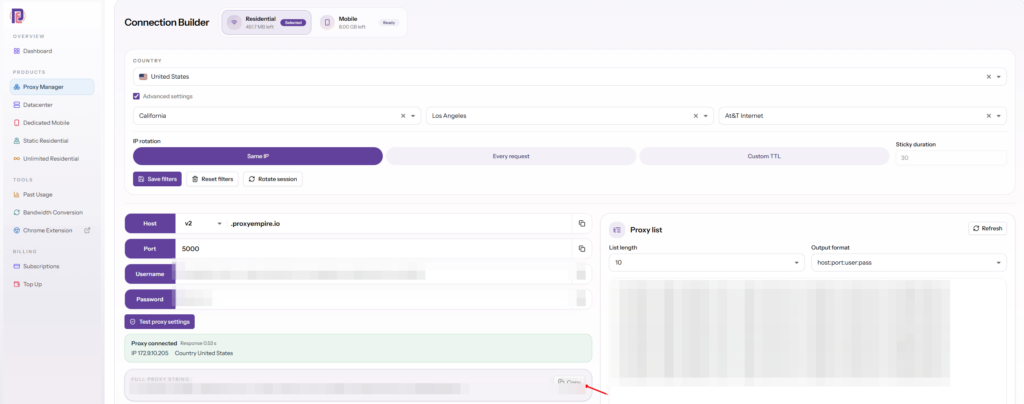
Step 2: Add the Proxy to a BitBrowser Window
Custom proxy, four fields, check- Add a browserGo to Browsers and click Add browser, or edit an existing window.
- Choose a custom proxySelect the custom proxy method rather than a built-in option.
- Pick the IP lookup serviceChoose which service BitBrowser uses to look up the IP’s location.
- Set type and detailsChoose HTTP or SOCKS5, then enter the host, port, username and password.
- Check and saveRun the proxy check, confirm the location, and save the window.
BitBrowser lets you choose the IP lookup service it uses to show the proxy’s location, with options such as IP-API and IP123. Lookup services don’t always agree on the exact city, so if a check shows a town next to the one you targeted, try the other service before assuming the proxy is wrong.
HTTP works for every website, HTTPS ones included, because the browser tunnels encrypted traffic through the proxy. SOCKS5 works with exactly the same ProxyEmpire details, so pick whichever fits your workflow.
Once the window opens, check that its timezone, language and geolocation match the proxy’s location rather than your computer’s, and that WebRTC shows the proxy’s address or nothing at all. ProxyEmpire carries TCP traffic only, not UDP, so WebRTC’s peer-to-peer traffic must be masked to keep your own IP private.
Batch-Importing BitBrowser Proxies
The template does the heavy liftingFor many windows, use BitBrowser’s Batch Import. Go to Browsers, click Batch Import and download the template file. Each row becomes a browser window. Set the proxy type column to http, https, socks5 or ssh, and fill the proxy column in Host:Port:Username:Password order. Save the spreadsheet and import it.
v2.proxyempire.io:5000:username-for-session-1:password
v2.proxyempire.io:5000:username-for-session-2:password
v2.proxyempire.io:5000:username-for-session-3:password
The usernames are placeholders. The Proxy list panel in ProxyEmpire’s Connection Builder generates real ones: set the list length, choose the host:port:user:pass output format and copy the list straight into the template’s proxy column. Each row gets its own sticky session, so each window gets its own IP.
BitBrowser also has a proxy IP management area for keeping saved proxies in one place, which makes it easier to see which proxy belongs to which window and to swap one out when a session needs replacing.
A good routine for large imports is to start small. Import five rows first, open each window, and confirm the IP, country and timezone look right before importing the rest. If one of the five fails, the problem is almost always in that row’s username or in the proxy type column, and it is far easier to fix in a five-row file than in a five-hundred-row one. Once the test batch is clean, import the full list, then spot-check a handful of windows at random. Keep the finished spreadsheet as your record of which session belongs to which account, and update it whenever you replace a session.
BitBrowser Proxies for E-commerce and Social Accounts
Set each account up the way a real owner would lookBitBrowser’s users tend to run accounts where a ban is expensive: marketplace stores, ad accounts and social profiles with an audience. A few rules protect them:
- Match the account’s country. A store registered in Germany should open from a German IP every time, ideally from the same city.
- One sticky session per window. Never share a session between two accounts on the same platform, and don’t reuse a retired account’s session for a new one.
- Replace IPs locally. If a sticky IP drops, start a new session in the same city rather than moving the account.
- Pick the IP type by platform. Residential for marketplaces and most web accounts; mobile for social media and app-first platforms that watch new accounts closely.
- Keep a record. Note each window’s session username next to the account, so anyone on the team can trace a problem to one row.
- Warm up new accounts with normal browsing before listing products or launching campaigns.
For seller accounts that should look like they never move, a static residential IP is the strongest option: the same address every day, from a residential ISP range.
Which ProxyEmpire Proxy to Use with BitBrowser
Match the IP to the account| Rotating residential | Rotating mobile | Static residential | |
|---|---|---|---|
| IP source | Home broadband | 4G carrier networks | Residential ISP ranges |
| In BitBrowser | One sticky session per window | One sticky session per window | One IP per window |
| Targeting | Country to ZIP, ISP, ASN | Country to ZIP, carrier, ASN | Country |
| Best for | Marketplace stores, most web accounts | Social media and app-first platforms | Seller accounts that must keep one IP |
| Price | $3.50/GB, down to $1.50/GB | $4.50/GB, down to $2.00/GB | $3.50 for one IP, down to $2.00/IP a month |
Rotating residential on a sticky session covers most BitBrowser windows. Mobile suits strict social platforms, and static residential, sold in 24 countries, suits accounts that need the same address every day. All three share one ProxyEmpire balance, and unused bandwidth rolls over.
Troubleshooting a BitBrowser Proxy
When the check fails| Problem | Likely cause and fix |
|---|---|
| Proxy check fails | Usually a typo, a trailing space or an old password. Copy the details from the Connection Builder again. |
| Batch import rows fail | Check that the proxy type column is filled and the proxy column is in Host:Port:Username:Password order, one proxy per row. |
| Wrong city shown | IP lookup services disagree. Switch the lookup service and compare before changing anything. |
| IP changed mid-session | The username is set to Every request, or the device behind the sticky IP went offline. Use Same IP and start a new session in the same city. |
| Stopped working | Check your bandwidth balance and whether targeting changed, which changes the username. |
| One site won’t load | Some site categories are restricted on ProxyEmpire by default, including banks, payment processors such as PayPal and Stripe, and crypto exchanges, and only ports 80 and 443 are open. Access can be reviewed after KYC and a use-case explanation to support. |
ProxyEmpire support is available 24/7 through live chat in the dashboard. Download BitBrowser from its official site, and if you also use another anti-detect browser, see our AdsPower proxy guide.
BitBrowser Proxy FAQ
Straight answersWhat is the best proxy for BitBrowser?
Rotating residential proxies with one sticky session per window suit most BitBrowser accounts. Use rotating mobile proxies for social media and app-first platforms, and static residential proxies for seller accounts that must keep one IP.
How do I add a proxy in BitBrowser?
Go to Browsers, click Add browser, choose a custom proxy, set the type to HTTP or SOCKS5 and enter v2.proxyempire.io, port 5000 and your ProxyEmpire username and password. Check the proxy and save.
How do I import many proxies into BitBrowser?
Use Batch Import: download the template, set the proxy type column and fill the proxy column as Host:Port:Username:Password, one row per window, then import the file.
Should I use HTTP or SOCKS5 in BitBrowser?
Either works with ProxyEmpire, because both use the same host, port, username and password. BitBrowser’s documentation suggests SOCKS5 for social media use.
Can two BitBrowser windows share one proxy?
Not for accounts on the same platform. Shared IPs can link accounts regardless of fingerprints, so give each window its own sticky session.
What is the best mobile proxy for BitBrowser?
A rotating mobile proxy on a sticky session, targeted to the account’s country and, if needed, its carrier. ProxyEmpire’s mobile IPs come from 4G carrier networks, with city, carrier and ASN targeting included.
Why does BitBrowser show a different city from the one I targeted?
IP lookup services use different location databases. Try another lookup service; if the country and region are right, the proxy is working.
Can I try ProxyEmpire with BitBrowser first?
Yes. The $1.97 trial includes 100 MB of residential and 50 MB of mobile bandwidth, and unused trial bandwidth doesn’t expire.
References
Primary documentation- BitBrowser Docs — HTTP, HTTPS, SOCKS5 and SSH proxies. doc.bitbrowser.net/help1/proxy/http-https-sock5-ssh
- BitBrowser Docs — Add a new browser profile. doc.bitbrowser.net/help1/browser-profiles/add-a-new-browser-profile
- BitBrowser Docs — Proxy IP management. doc.bitbrowser.net/help1/proxy/proxy-ip-management
Give every BitBrowser window its own real IP
Residential, 4G mobile and static residential proxies with city, ZIP, ISP and carrier targeting included, a sticky session for each window, bandwidth that rolls over and 24/7 support from real people. Try it for $1.97.