Multilogin gives every browser profile and cloud phone its own fingerprint, but the fingerprint only holds up if the IP behind it looks just as real. This guide shows how to set up a Multilogin proxy with ProxyEmpire: where to find your connection details, how to add them to a browser profile or an Android cloud phone, how to fill many profiles at once, and which of our residential, mobile and static residential proxies fits each kind of account.
The short version
In Multilogin, open a profile, go to the Proxy section, choose Custom, pick HTTP and paste your ProxyEmpire details as v2.proxyempire.io:5000:username:password. Multilogin checks the proxy automatically, and with timezone, geolocation and WebRTC left on Masked, the profile’s fingerprint follows the proxy’s location. Use a sticky session so each profile keeps its IP, and one session per profile so accounts never share an address.
Why a Multilogin Proxy Matters
A perfect fingerprint on a bad IP still gets linkedMultilogin is a multi-account platform. Each browser profile runs on its own browser engine with its own cookies, storage and device fingerprint, and each Android cloud phone is a separate remote device. That keeps accounts from being linked through the browser. It does nothing about the network. If ten profiles connect from your office connection, a website sees ten “different” people sharing one IP address, and that is one of the first signals anti-fraud systems check.
A proxy fixes the network side. Each profile connects through its own IP address, in the country, city or network you choose, so the IP matches the story the fingerprint tells. The quality of that IP matters as much as having one:
- Residential IPs come from real home broadband connections, so they look like ordinary users to platforms such as marketplaces, ad networks and social sites.
- Mobile IPs come from 4G carrier networks. Carriers share each address between many real subscribers, so platforms are cautious about blocking them, which makes them the strongest choice for social media and app accounts.
- Datacenter IPs are cheap and fast, but platforms recognise hosting ranges easily. They suit scraping and testing, not accounts you need to keep.
Multilogin also sells its own proxy traffic. Bringing your own ProxyEmpire proxies makes sense when you want targeting beyond country and city, such as ZIP code, ISP, mobile carrier or ASN, when you use the same bandwidth in other tools too, or when you want static residential IPs that stay the same for months.
What you need
- A Multilogin account with at least one browser profile or cloud phone.
- A ProxyEmpire account with residential, mobile or static residential bandwidth. The $1.97 trial gives you 100 MB of residential and 50 MB of mobile bandwidth to test with.
- About five minutes for the first profile, and seconds for each one after that.
Step 1: Get Your ProxyEmpire Proxy Details
Everything Multilogin needs is in the Proxy ManagerLog in to the ProxyEmpire dashboard and open the Proxy Manager, where the Connection Builder is. Pick the product (rotating residential, rotating mobile or static residential), then set where the IP should come from. On residential and mobile you can target by country, region or state, city, ZIP code, ISP (carrier on mobile), ASN and OS fingerprint, all included at no extra charge. Static residential and datacenter proxies are targeted by country only.
Then choose how the IP should behave:
- Sticky session (Same IP in the Connection Builder) keeps the same IP with no fixed time limit: the IP stays until you rotate it or the device behind it goes offline. This is what almost every Multilogin profile should use, because an account that changes IP on every page load looks nothing like a real person.
- Rotating (Every request) gives a new IP on every request. It suits scraping profiles, not accounts you log in to.
- Custom rotation (Custom TTL) changes the IP on a timer you set, up to two hours, if you want a fresh IP per work session.
The Connection Builder then shows your connection details, with a Test proxy settings button and a full proxy string you can copy in one click. The host is v2.proxyempire.io and the port is 5000. Your targeting and session are built into the proxy username, so every location or session is simply a different username with the same host, port and password. ProxyEmpire proxies authenticate with a username and password; there is no IP whitelisting to set up.
Host       v2.proxyempire.io
Port       5000
Username   your ProxyEmpire proxy username (includes targeting + session)
Password   your ProxyEmpire proxy password

Pasted into Multilogin as one line:
v2.proxyempire.io:5000:username:password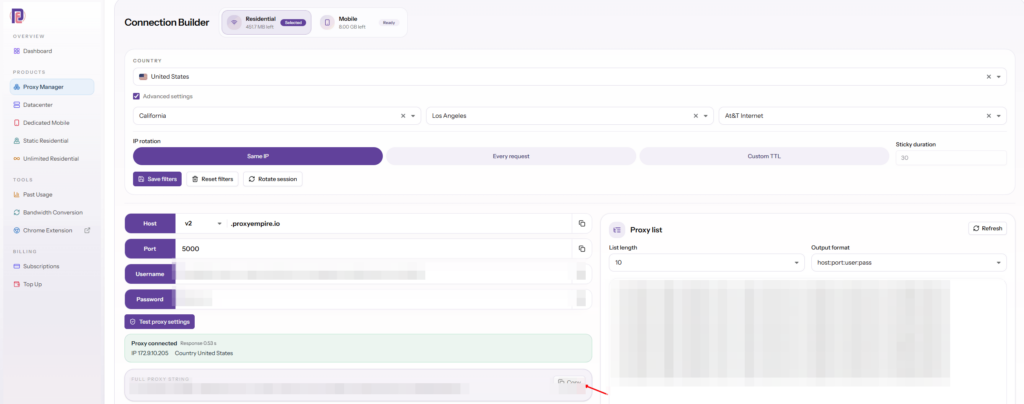
Step 2: Add the Proxy to a Multilogin Browser Profile
Custom proxy, HTTP, paste, done- Open the profile settingsCreate a new browser profile or open an existing one, and find the Proxy section.
- Choose CustomMultilogin’s proxy options are Multilogin, Custom, Template and None. Custom is for your own provider.
- Pick the protocolChoose HTTP or SOCKS5. ProxyEmpire uses the same host, port, username and password for both.
- Paste your detailsPaste the full proxy string from ProxyEmpire. It is already in the host, port, login, password order Multilogin asks for.
- Check the resultMultilogin checks the proxy automatically and shows “Proxy check passed” with the IP’s location, or “Proxy check failed”.
HTTP is the simplest choice and works for every website, including HTTPS sites: the browser opens an encrypted tunnel through the proxy, so the proxy never sees the content of your pages. SOCKS5 works just as well with the same details, so pick whichever your workflow prefers.
Leave the location settings on Masked
In the profile’s fingerprint settings, Multilogin’s defaults for timezone, geolocation and WebRTC are all Masked. Multilogin’s documentation describes what that does: the timezone is matched to the proxy’s location, geolocation coordinates are generated near the proxy’s approximate location, and WebRTC IP information stays aligned with the proxy, even if the proxy IP changes during use. Leave these on Masked unless you have a specific reason to change them. Setting them to Real would show your own computer’s timezone or IP next to a proxy from somewhere else, which is exactly the mismatch you are trying to avoid.
Browser languages work differently. Multilogin notes that languages are a user preference and don’t have to match the proxy country, so set them to what a real user of that account would have.
Launch and confirm
Start the profile and open any IP-check page. The IP, city and timezone should match the location you targeted in the Proxy Manager. If the city is slightly different, that is usually the IP-location database, not the proxy: different databases place the same IP in different nearby towns.
Proxies for Multilogin Cloud Phones
Same details, one important ruleMultilogin’s Android cloud phones run on remote servers, and every cloud phone needs a public proxy to reach the internet. Multilogin’s documentation is explicit that local addresses such as 127.0.0.1 or 192.168.x.x won’t work, because the phone is not on your network. ProxyEmpire’s endpoint is public, so it works as-is.
- Create the phoneGo to Profiles, then Mobile, then Create, and give the phone a name.
- Add the proxyChoose a custom proxy, pick HTTP, HTTPS or SOCKS5, and paste the full proxy string from ProxyEmpire.
- Check and createClick Check proxy, review the settings and click Create.
For cloud phones, rotating mobile proxies with a sticky session are the natural fit: a phone on a real carrier IP in the same country as its SIM profile is what mobile apps expect to see. If you need one mobile IP reserved for a single phone, look at dedicated 4G mobile proxies.
One detail from Multilogin’s documentation is worth knowing before you start: you can change a cloud phone’s proxy later, but that doesn’t update the device location the phone displays. The connection itself works normally. If the displayed location matters to you, choose the proxy location before you create the phone.
Setting Up Many Multilogin Profiles at Once
Templates and proxy listsTyping one proxy per profile gets slow past a handful of accounts. Multilogin has two features that help, and ProxyEmpire’s username-based sessions fit both.
Proxy templates
Multilogin’s proxy template manager saves a proxy setup as a template you can apply to many browser profiles or cloud phones in one step. Save one template per location you use often, for example “US residential, New York” or “UK mobile”. Remember that a template applies the same proxy, so profiles that share a sticky template also share an IP. Use templates for settings you want repeated, then give each account its own session.
Quick profiles with a proxy list
Multilogin’s quick profiles accept a list of up to 25 proxies, used either Sequentially (top to bottom) or Randomly (without repetition). To build that list, use the Proxy list panel in ProxyEmpire’s Connection Builder: set the list length, choose the host:port:user:pass output format and copy the list. Each line carries its own session, so each profile gets its own IP.
v2.proxyempire.io:5000:username-for-session-1:password
v2.proxyempire.io:5000:username-for-session-2:password
v2.proxyempire.io:5000:username-for-session-3:password
The usernames above are placeholders. Copy the real ones from your dashboard, because the exact format includes your targeting and session settings.
Which ProxyEmpire Proxy to Use with Multilogin
Match the IP to the account| Rotating residential | Rotating mobile | Static residential | |
|---|---|---|---|
| IP source | Home broadband | 4G carrier networks | Residential ISP ranges |
| Use in Multilogin with | A sticky session per profile | A sticky session per profile or phone | One IP per profile |
| Targeting | Country to ZIP, ISP, ASN | Country to ZIP, carrier, ASN | Country |
| Best for | E-commerce, ads, most web accounts | Social media, cloud phones, app accounts | Long-lived accounts that must keep one IP |
| Price | $3.50/GB, down to $1.50/GB | $4.50/GB, down to $2.00/GB | $3.50 for one IP, down to $2.00/IP a month |
Rotating residential is the default for most Multilogin work. Pick mobile when the platform is mobile-first or strict about new accounts, and for every cloud phone. Pick static residential when an account should log in from exactly the same address for months, for example a store’s seller account; static residential is sold in 19 countries. All three can be used on one ProxyEmpire account, and unused bandwidth rolls over.
Rules That Keep Multilogin Profiles Apart
Habits that matter more than the tool- One session per profile. Never let two accounts on the same platform share a sticky session or a static IP. A shared IP links them no matter how different their fingerprints are.
- Keep each account in one place. Log in to an account from the same country, and ideally the same city, every time. A profile that is in New York today and Berlin tomorrow looks like a hijacked account.
- Match the story. A profile with a US fingerprint, a US timezone and a US mobile carrier is consistent. Mixed signals are what risk systems look for.
- Rotate on purpose. If a sticky IP drops because the device behind it went offline, start a new session in the same city rather than switching location.
- Don’t over-narrow. A small town combined with one ISP may have few IPs. City or state targeting is usually enough.
- Warm up new accounts. Browse normally on a new profile before doing anything unusual with it, whatever proxy you use.
Troubleshooting a Multilogin Proxy
The errors people hit most often| Problem | Likely cause and fix |
|---|---|
| “Proxy check failed” | Usually a typo, a space at the start or end, or the wrong password. Copy the details from the Proxy Manager again and paste them in host:port:login:password order. |
| Works in one profile, fails in another | Compare the two entries character by character. ProxyEmpire uses the same host, port and credentials for HTTP and SOCKS5, so the cause is almost always a typo or an old session username, not the protocol. |
| Worked yesterday, fails today | Check your bandwidth balance in the dashboard, then check whether you changed the targeting, which changes the username. |
| The IP changed in the middle of a session | The profile is on a rotating username, or the device behind a sticky IP went offline. Use a sticky session, and start a new one in the same city if it drops. |
| Wrong city on an IP-check site | IP-location databases disagree with each other. Check two or three sites before changing anything. |
| One site won’t load, everything else does | Some site categories are restricted on ProxyEmpire by default, including banks, payment processors such as PayPal and Stripe, and crypto exchanges, and only ports 80 and 443 are open. Access can be reviewed after KYC and a use-case explanation to support. |
| Cloud phone has no internet | A cloud phone needs a public proxy. Make sure the proxy is set on the phone itself, not only on your browser profiles. |
If you’re stuck, ProxyEmpire’s support team is available 24/7 through live chat in the dashboard, and they can check your proxy details with you.
Multilogin Discount Code
For ProxyEmpire customersProxyEmpire customers can use the Multilogin promo code PEMPML for 50% off the first month’s payment on a Multilogin subscription. It is a one-time discount on your first month, not a recurring one. Enter the code when you buy a plan on Multilogin’s pricing page.
Multilogin Proxy FAQ
Straight answersWhat is the best proxy for Multilogin?
Rotating residential proxies with a sticky session per profile suit most Multilogin accounts. Use rotating mobile proxies for social media, app accounts and cloud phones, and static residential proxies for accounts that must keep the same IP for months.
How do I add a proxy in Multilogin?
Open the profile, go to the Proxy section, choose Custom, pick HTTP, HTTPS or SOCKS5, and enter the proxy as host:port:login:password. With ProxyEmpire that is v2.proxyempire.io:5000 followed by your proxy username and password. Multilogin checks the proxy automatically.
Does Multilogin work with SOCKS5 proxies?
Yes. Multilogin supports HTTP, HTTPS and SOCKS5 custom proxies. ProxyEmpire supports HTTP, HTTPS and SOCKS5, and HTTP and SOCKS5 use the same host, port, username and password, so you can pick either.
Can I use one proxy for several Multilogin profiles?
You can, but you shouldn’t for accounts on the same platform. Profiles that share an IP can be linked however different their fingerprints are. Give each profile its own sticky session.
How do I keep the same IP in a Multilogin profile?
Use a sticky session in the ProxyEmpire Proxy Manager. The IP has no fixed time limit and stays until you rotate it or the device behind it goes offline. For an IP that never changes, use a static residential proxy.
What is the best mobile proxy for Multilogin?
A rotating mobile proxy on a sticky session, targeted to the country and, if you need it, the carrier your account belongs to. ProxyEmpire’s mobile IPs come from 4G carrier networks, with city, carrier and ASN targeting at no extra charge.
Can I use ProxyEmpire proxies with Multilogin cloud phones?
Yes. Cloud phones need a public proxy, and ProxyEmpire’s endpoint is public and supports HTTP, HTTPS and SOCKS5. Add it when you create the phone, because changing the proxy later doesn’t update the location the phone displays.
Is there a Multilogin promo code?
Yes. The code PEMPML gives 50% off the first month’s payment on a Multilogin subscription. It applies once, to your first month, and is not a recurring discount.
Can I try ProxyEmpire with Multilogin before buying?
Yes. The $1.97 trial includes 100 MB of residential and 50 MB of mobile bandwidth, enough to set up and test several profiles. Unused trial bandwidth doesn’t expire.
References
Primary documentation- Multilogin Help — How to use custom HTTP and SOCKS proxies in Multilogin X. multilogin.com/help/en_US/ip-masking-solutions/http-and-socks-proxies
- Multilogin Help — Multilogin profile settings: Proxy section. multilogin.com/help/en_US/profile-behavior-identity/profile-settings-proxy-section
- Multilogin Help — Browser profile settings: Fingerprint section (timezone, geolocation, WebRTC, languages). multilogin.com/help/en_US/profile-settings-fingerprint-section
- Multilogin Help — How to create Android cloud phones. multilogin.com/help/en_US/how-to-create-mobile-profiles
- ProxyEmpire — Service status and uptime. status.proxyempire.io
Give every Multilogin profile a real IP
Residential, 4G mobile and static residential proxies with city, ZIP, ISP and carrier targeting included, sticky sessions per profile, bandwidth that rolls over and 24/7 support from real people. Try it for $1.97.