DICloak lets you create separate browser profiles, each with its own cookies, fingerprint and proxy settings. Managing many accounts also means choosing the right IP for each profile. This guide shows how to set up ProxyEmpire proxies in DICloak: getting your proxy details, configuring a browser profile, managing many proxies at once, and choosing between residential, mobile and static residential proxies.
The short version
In DICloak, open Profiles and click Create profile, or Edit on an existing one. Under Proxy settings choose Custom Proxy, pick HTTP, HTTPS or SOCKS5, and enter host v2.proxyempire.io, port 5000 and your ProxyEmpire proxy username and password. Click Checking proxy to confirm the exit IP, then save the profile. Give each profile its own sticky session (Same IP). ProxyEmpire customers get 10% off their first DICloak subscription with the code PROXYEMPIRE10.
What Is the DICloak Antidetect Browser?
Isolated profiles for many accountsDICloak is an antidetect browser for businesses and individuals who manage multiple online accounts. Each browser profile is isolated, with its own cookies, browsing data, digital fingerprint and proxy settings. You can also adjust fingerprint settings such as the user agent, operating system and time zone to suit each account.
DICloak is built for social media managers, e-commerce sellers, affiliate marketers and agencies, and keeps all their accounts in one place. Beyond profile isolation, it offers team collaboration, profile groups, bulk operations and automation, which help teams with large numbers of accounts cut down on repetitive work.
What makes DICloak useful with proxies
For example, an agency managing 30 social media accounts can create 30 DICloak profiles and give each one its own ProxyEmpire connection. Every account keeps its own environment, and the whole team works from one shared workspace.
Before you start
- DICloak installed on Windows 10 or later, macOS 11 or later, or a 64-bit Linux distribution such as Ubuntu 22.04.
- A ProxyEmpire account with bandwidth. The $1.97 trial includes 100 MB of residential and 50 MB of mobile bandwidth, which is plenty for testing a few profiles.
- Your ProxyEmpire proxy username and password, which you’ll find in the Proxy Manager.
Step 1: Get Your ProxyEmpire Proxy Details
Choose the location and session firstIn the ProxyEmpire dashboard, open the Proxy Manager, where the Connection Builder is, and pick the product. Rotating residential and rotating mobile proxies can be targeted by country, region or state, city, ZIP code, ISP (carrier on mobile) and ASN at no extra cost. Static residential proxies are targeted by country.
Then decide how long each IP should last:
- Sticky session (Same IP in the Connection Builder) keeps one exit IP for as long as that session stays available, instead of changing it with every request. Use one for every DICloak profile you log in to.
- Rotating (Every request) changes the IP on every request, which suits data collection but not logged-in accounts.
- Custom rotation (Custom TTL) swaps the IP on a timer you choose, up to two hours.
Whatever you choose, the host is v2.proxyempire.io and the port is 5000. The location and session are part of the proxy username, so a new city or a new session only changes the username. ProxyEmpire uses username and password authentication, so you don’t need to whitelist your IP.
Step 2: Download DICloak
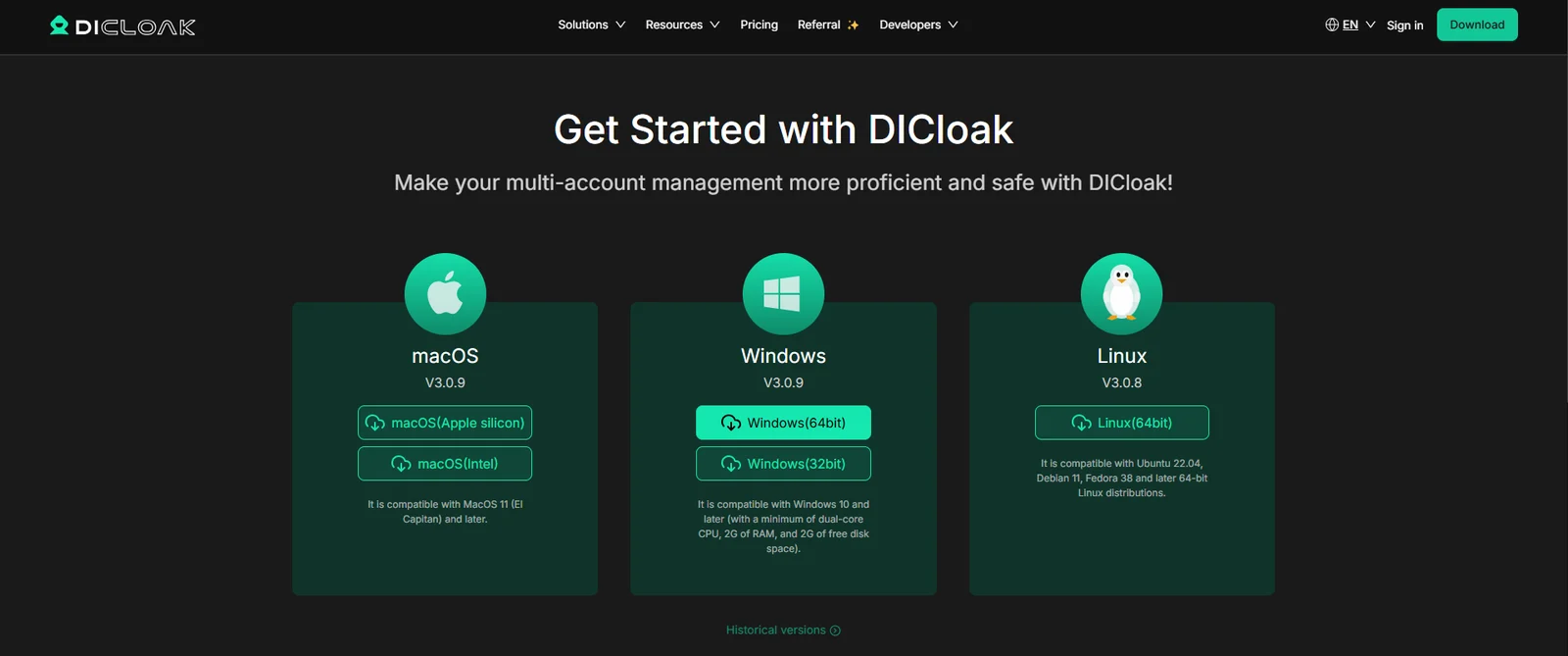
Windows, macOS or LinuxGo to the official DICloak download page and install the app for your system. There are builds for macOS (Apple silicon and Intel), Windows (64-bit and 32-bit) and 64-bit Linux. When the installation is done, open DICloak and sign in.
Step 3: Create or Edit a Browser Profile
One profile per accountGo to Profiles and click Create profile to set up a new browser environment. Give the profile a name and adjust the basic settings for the account you plan to use in it.
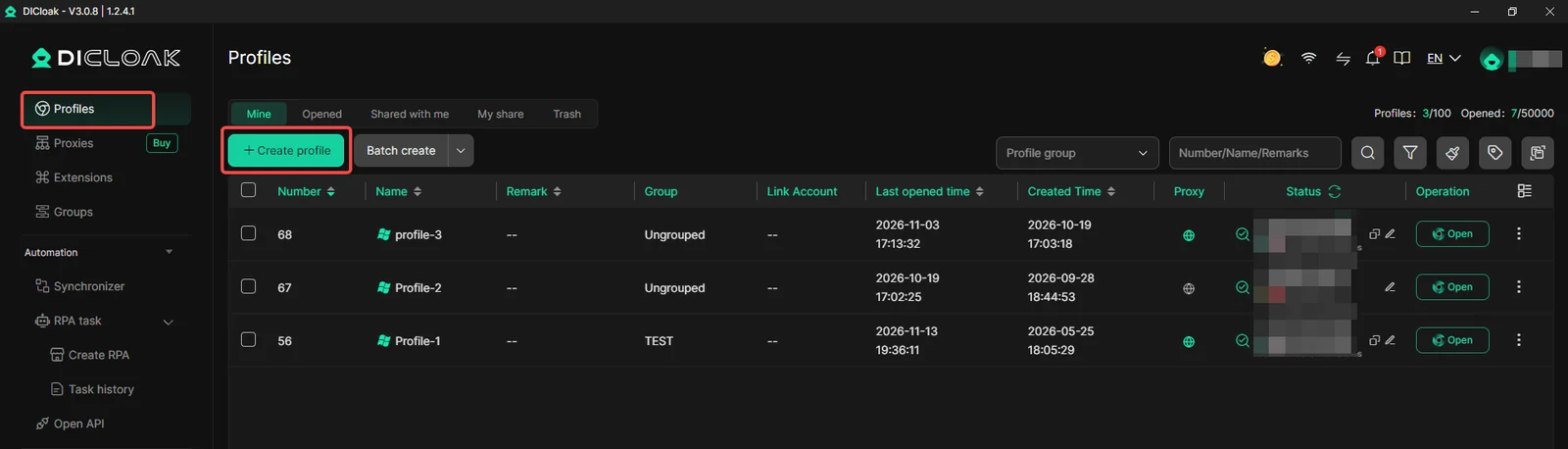
If you already have a profile, you don’t need a new one. Open the menu next to it and click Edit to change its configuration.
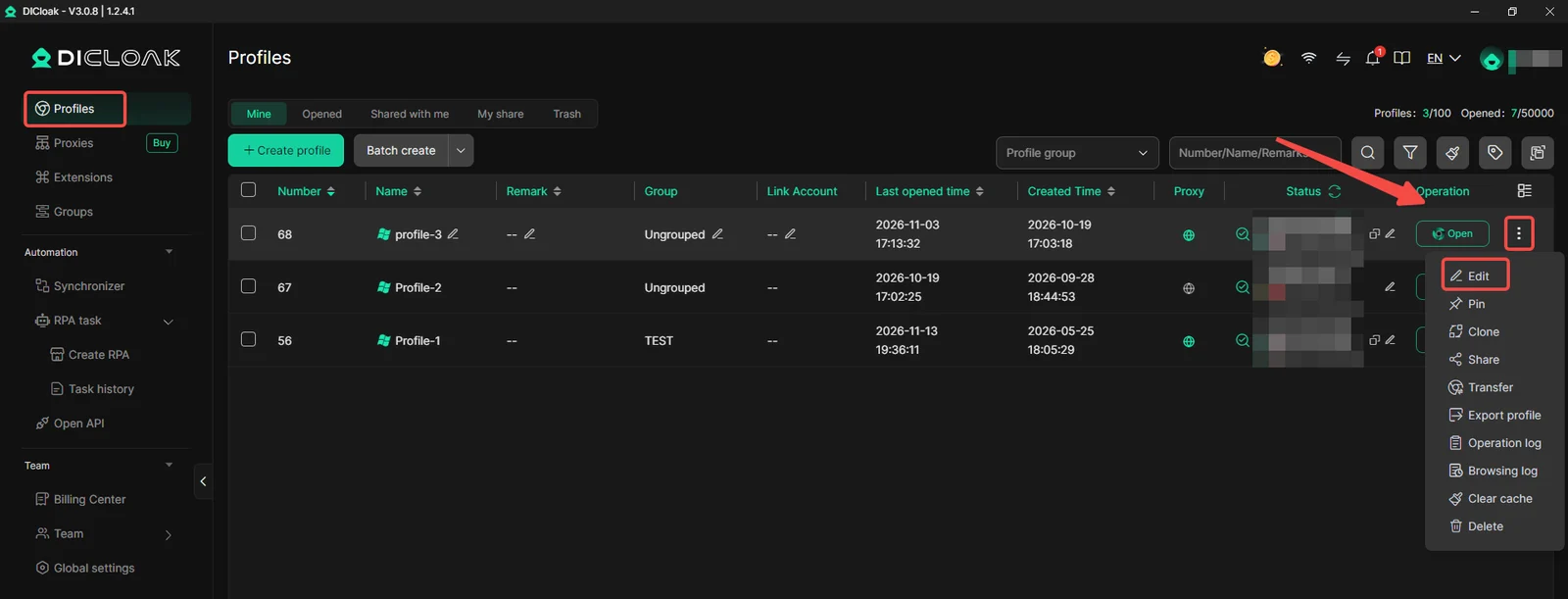
Step 4: Configure the Proxy
Custom Proxy, then the ProxyEmpire detailsIn the profile window, find Proxy settings and select Custom Proxy. The PuraRoute Proxy tab next to it is for proxies bought inside DICloak; Custom Proxy is where you add your own provider. Choose the protocol and enter the details from the ProxyEmpire dashboard:
| Setting | What to enter |
|---|---|
| Proxy type | HTTP, HTTPS or SOCKS5. All three use the same ProxyEmpire details |
| IP protocol | IPv4 |
| Host | v2.proxyempire.io |
| Port | 5000 |
| Proxy account | Your ProxyEmpire proxy username, which carries the location and session settings |
| Proxy password | Your ProxyEmpire proxy password |
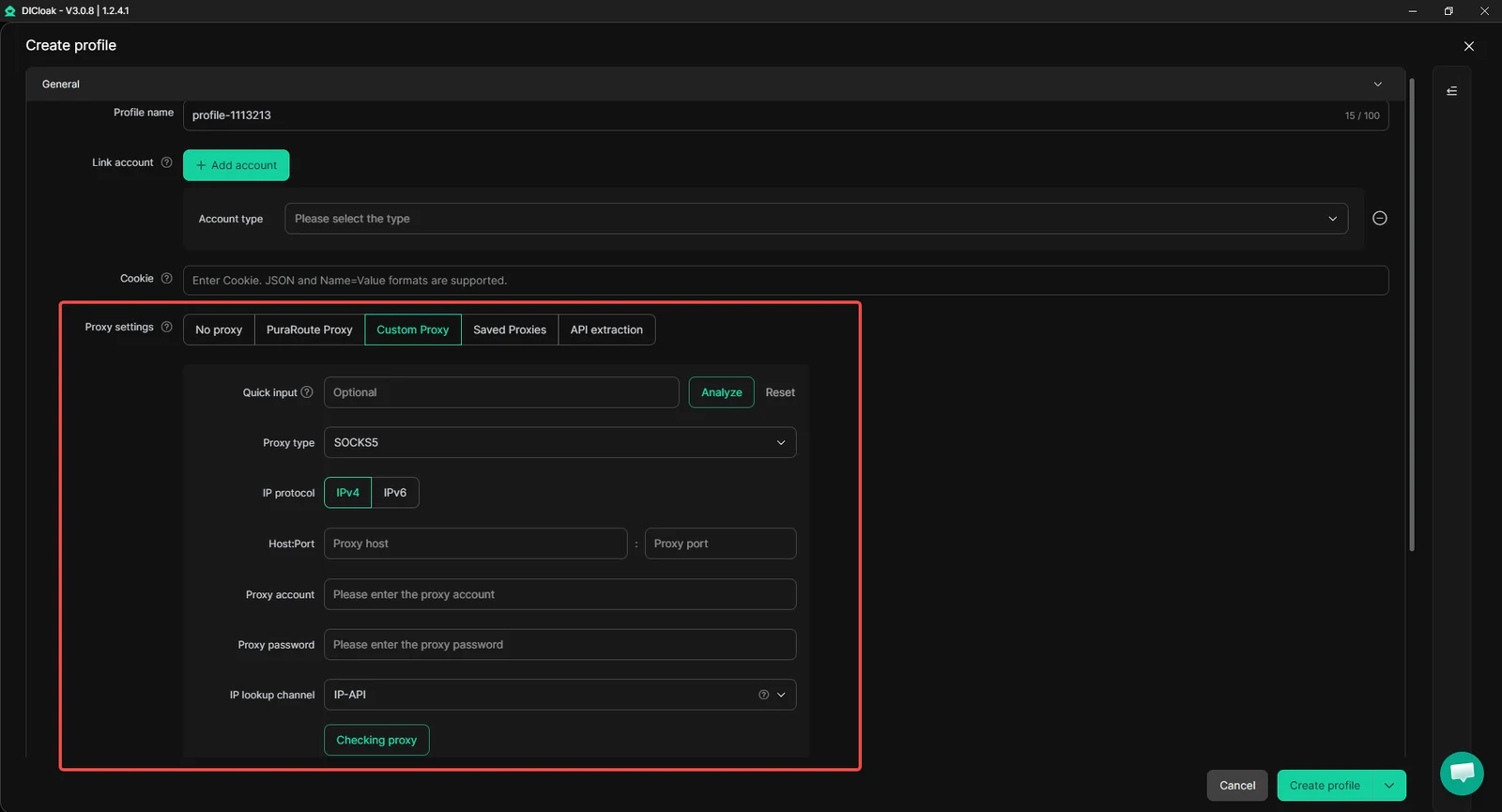
Copy the complete username from the Connection Builder, including any location or session parameters. They decide where the connection exits and whether it keeps the same IP, so a shortened username gives you a different result. If you have the whole proxy as one line, paste it into Quick input and click Analyze to fill in the fields.
Step 5: Check the Proxy Connection
Confirm the IP before you log inClick Checking proxy to test the connection. When the test succeeds, DICloak shows the exit IP with its country, state, city and time zone, so you can confirm the location matches what you chose.
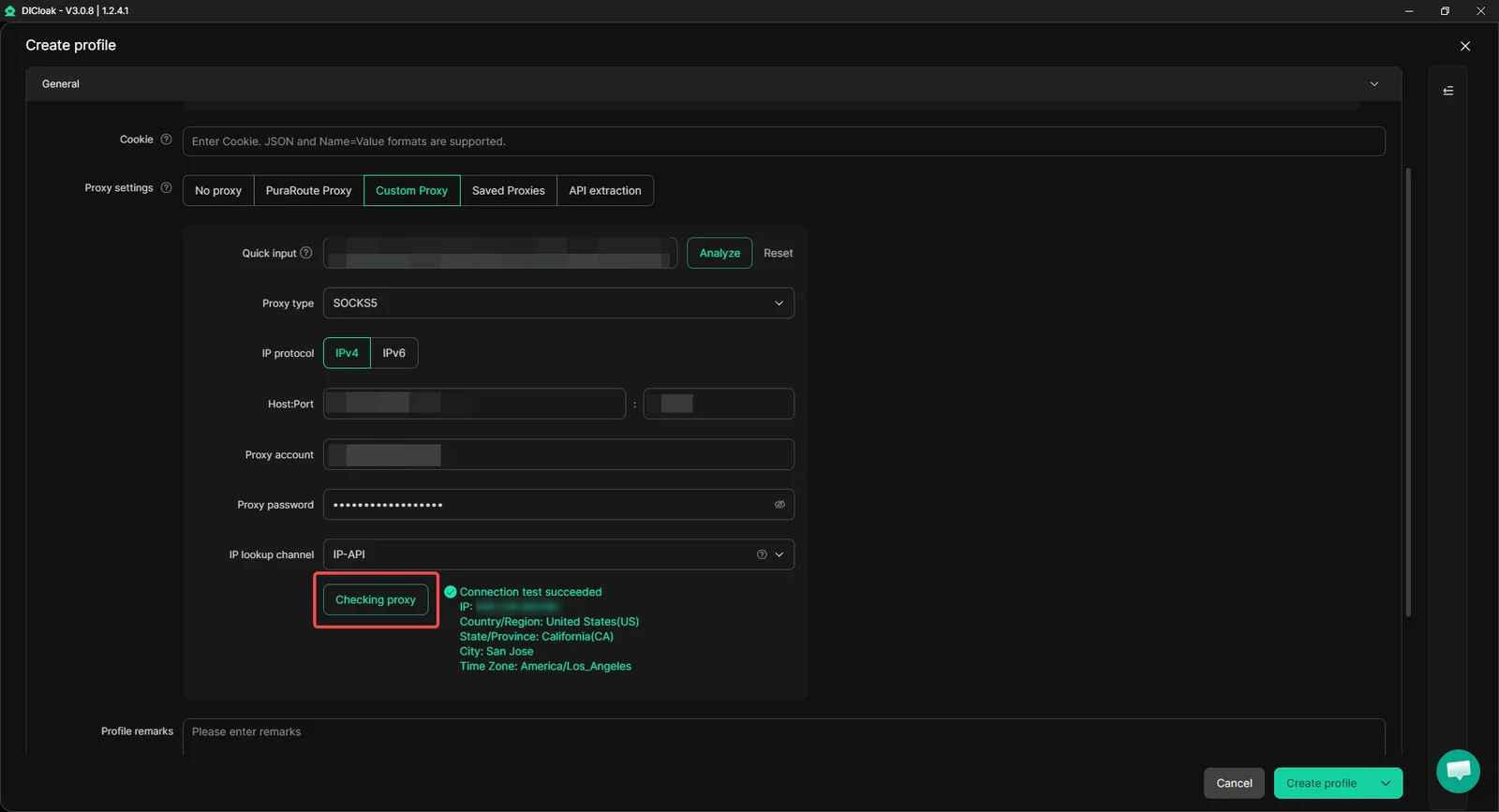
When everything looks right, click Create profile to save the settings. If the test fails, check the credentials and connection details and try again.
Step 6: Open the Browser Profile
The profile launches with its own IPGo back to the profile list and click Open next to the profile you just configured. The browser starts with the saved proxy connection, so you can start working without changing your computer’s network settings.

To double-check, visit an IP-checking site such as api.ipify.org inside the profile. For another account with a different connection, create a separate profile and repeat the steps with a new sticky session.
Managing Many Proxies in DICloak
Save once, assign everywhereSetting up one or two profiles by hand is quick, but repeating it for 50 accounts takes time. That is where DICloak’s proxy management helps. Under Proxies you can save connections with Create Proxy, import many entries with Batch create, organize them into groups, run batch connectivity tests, and assign saved proxies to several profiles without opening each one.
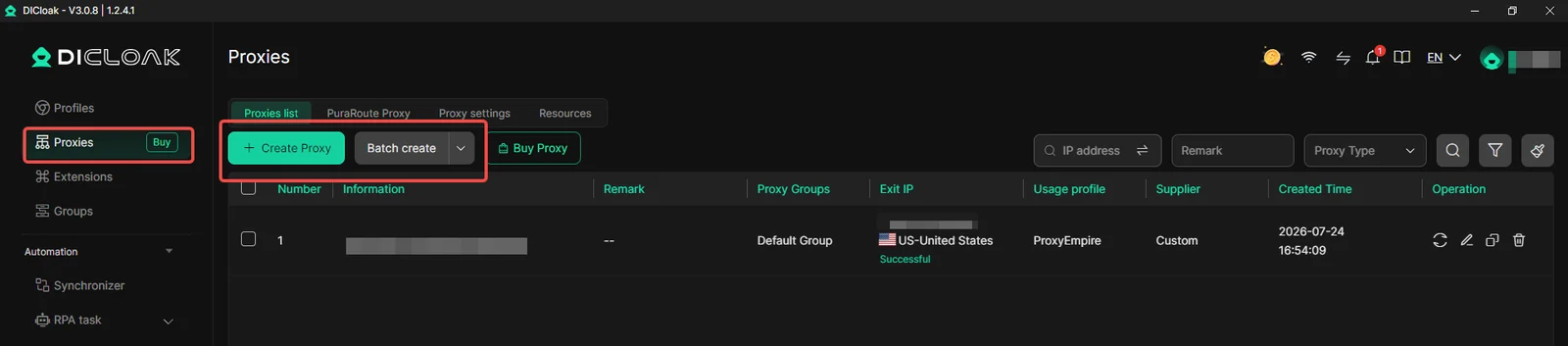
Say your agency manages 50 social media accounts, each needing its own sticky session. Create 50 sticky sessions in the ProxyEmpire Connection Builder, import them into DICloak’s proxy list and assign them across your profiles. With enough unused proxies saved, DICloak’s random assignment can spread different connections across profiles for you.
Which Proxy Type Should You Choose?
Match the IP to the jobThe right proxy depends on what the profiles are for. Some tasks need flexible IP rotation, others need a connection that stays the same over time.
| Proxy type | Best for | Typical use |
|---|---|---|
| Rotating residential | Flexible locations and sticky sessions | E-commerce, affiliate marketing, market research |
| Rotating mobile | Mobile carrier connections | Social media accounts, regional mobile content testing |
| Static residential | The same IP over the long term | Ongoing account management, regular business tasks |
For accounts that stay logged in, a residential proxy with a sticky session is a practical starting point. For tasks that need a mobile network, mobile proxies give you a real carrier connection. Static residential proxies are worth it when an account needs the same IP for weeks or months. Our guide to sticky vs rotating proxies explains the trade-offs.
Common Proxy Connection Issues
Check the details firstMost connection problems come down to the credentials, proxy settings or session setup. If the browser can’t connect, check the host, port, username and password before changing unrelated browser settings.
| Problem | What to check |
|---|---|
| Connection test fails | The host v2.proxyempire.io, port 5000 and the protocol |
| Authentication fails | The username and password. Copy the full username from the Connection Builder, including its targeting and session parts |
| Wrong IP location | The location settings in the Connection Builder. IP databases sometimes disagree on the city, so also try another IP lookup channel in DICloak |
| IP changes unexpectedly | Whether the username uses Same IP (sticky) or a rotating session |
| Works elsewhere, not in the browser | Re-enter the details in the profile and run Checking proxy again |
| One particular site won’t load | Some site categories, such as banks, payment processors and crypto exchanges, are restricted on ProxyEmpire by default, so they won’t load through the proxy |
If everything looks right, test the same details outside DICloak, for example with curl -x http://USERNAME:[email protected]:5000 https://api.ipify.org. Once the proxy works there, go back to the profile and check that the saved details match.
DICloak Discount Code
For ProxyEmpire customersProxyEmpire customers get 10% off their first DICloak subscription with the promo code PROXYEMPIRE10. According to DICloak, the code can be combined with its ongoing promotions. To redeem it, open the DICloak app, go to Billing Center, choose your plan and enter the code at checkout. New to DICloak? Create your account here.
Frequently Asked Questions
DICloak and ProxyEmpire, in shortCan I use a different proxy for each DICloak profile?
Yes. Every profile has its own proxy settings, so each account can use its own IP. You can also save proxies and reuse them across profiles.
Can I import proxies into DICloak in bulk?
Yes. DICloak can create, import, test and assign proxies in batches, which helps when you manage many profiles and want to skip repetitive manual setup.
Should I use rotating or static proxies with DICloak?
It depends on the workflow. Sticky residential sessions give you flexibility with a consistent IP during a session, while static residential proxies suit long-term accounts that need the same IP.
Do I need to buy proxies inside DICloak?
No. DICloak offers its own proxies through the PuraRoute Proxy option, but you can use any compatible HTTP, HTTPS or SOCKS5 provider. To use ProxyEmpire, choose Custom Proxy in the profile’s proxy settings.
Is there a DICloak discount code?
Yes. The code PROXYEMPIRE10 gives ProxyEmpire customers 10% off their first DICloak subscription. Enter it in the Billing Center at checkout.
Give every DICloak profile its own IP
DICloak keeps your browser environments separate; ProxyEmpire gives each one a residential, mobile or static residential IP in the location you need, with sticky sessions and one account that works in every tool.