Proxy SwitchyOmega, the free extension that stores several proxies and switches between them by website, is no longer on the Chrome Web Store. It was built on Manifest V2, which Chrome has switched off, and its developer stopped maintaining it. The same tool lives on as ZeroOmega, listed as “Proxy SwitchyOmega 3 (ZeroOmega)”: a Manifest V3 fork with the same profiles, the same options page and the same Auto Switch rules. This guide shows how to install it in Chrome, Edge and Firefox, add a proxy with a username and password, send each website through the right proxy, test the result and fix the usual errors, using a rotating residential proxy as the example.
The short version
Install “Proxy SwitchyOmega 3 (ZeroOmega)” from your browser’s store, choose New profile… and Proxy Profile, set the protocol to HTTP with your proxy’s server and port, click the lock icon to save the username and password, then click Apply changes. Pick the profile from the toolbar icon, or build an Auto Switch profile that chooses a proxy for each website. In Chrome and Edge, use HTTP rather than SOCKS5 for any proxy that needs a login: Chrome extensions can’t send a SOCKS5 password.
What happened to Proxy SwitchyOmega?
Manifest V2 ended, the fork carried onThe original Proxy SwitchyOmega was an open-source project on GitHub. Its last tagged release there, version 2.5.20, dates from August 2018, and the repository now describes itself as no longer maintained. The extension was written for Manifest V2, the older extension platform that Chrome has been retiring for several years.
Chrome’s own timeline explains the rest. With Chrome 138, in July 2025, Manifest V2 extensions were disabled for all users on all channels, with no way to turn them back on, and Chrome 139 removed support entirely. On 31 August 2026 the remaining Manifest V2 extensions were removed from the Chrome Web Store. Google notes that existing installs on Chrome 138 or earlier keep running but can’t be updated or reinstalled. If SwitchyOmega vanished from your toolbar, or Chrome shows it as turned off, this is why, and no setting will bring it back.
ZeroOmega is the maintained fork. It was rebuilt for Manifest V3 and keeps the original’s profiles, rules and options page, so older SwitchyOmega tutorials, including our video further down, still match what you see. When we checked on 1 October 2026:
| Store | Listing name | Version and last update |
|---|---|---|
| Chrome Web Store | Proxy SwitchyOmega 3 (ZeroOmega), offered by suziwen1 | 3.5.2, updated 10 September 2026 |
| Microsoft Edge Add-ons | Proxy SwitchyOmega 3 (ZeroOmega) | 3.5.2 |
| Firefox Add-ons | ZeroOmega–Proxy SwitchyOmega V3, by zero-peak | 3.5.2, updated 9 September 2026 |
The project’s GitHub page, zero-peak/ZeroOmega, links all three listings, and version 3.5.2 was tagged there on 9 September 2026. The Firefox listing gives the licence as GPL-3.0. New in the fork: settings sync through a GitHub Gist or WebDAV, and a light, dark or automatic theme.
Be careful in the Chrome Web Store: other publishers have uploaded extensions with SwitchyOmega in the name. They aren’t the fork this guide covers. Look for the exact name “Proxy SwitchyOmega 3 (ZeroOmega)” and a description that links to the ZeroOmega source code.
Key takeaways
- The original SwitchyOmega is Manifest V2, unmaintained and gone from the Chrome Web Store.
- ZeroOmega is its maintained Manifest V3 fork, with the same profiles and Auto Switch rules.
- It works in Chrome, Edge and Firefox. It manages proxies; it doesn’t come with any.
- In Chrome and Edge, logins work over HTTP and HTTPS, not SOCKS5. Firefox can do SOCKS5 logins.
What you need before you start
Four details from your proxy providerZeroOmega is a switcher. It tells the browser which proxy to use, but you bring the proxies. Every provider gives you the same four details: a server (host name or IP), a port, a username and a password, plus the protocols the server accepts.
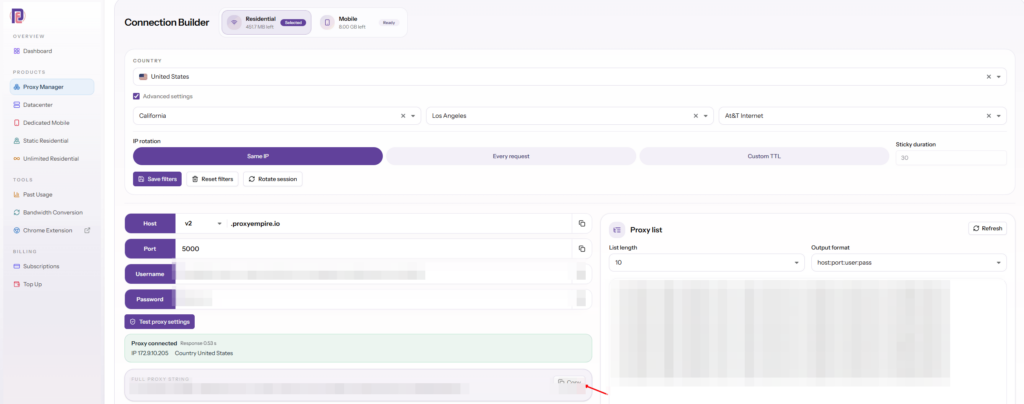
With ProxyEmpire, open the Proxy Manager in the dashboard and use the Connection Builder. Choose residential or mobile, set where the IP should come from (country, region, city, ZIP, ISP or carrier, ASN) and choose a rotating or sticky session. The builder then shows the host and port and generates the username and password to copy.
| Detail | ProxyEmpire value | Where it goes in ZeroOmega |
|---|---|---|
| Protocol | HTTP (SOCKS5 also available) | Protocol drop-down in the Proxy servers table |
| Server | v2.proxyempire.io | Server field |
| Port | 5000 | Port field |
| Username | From the Connection Builder; your targeting is part of it | Lock icon, then Username |
| Password | From the Connection Builder | Lock icon, then Password |
Rotating residential and rotating mobile proxies share that one gateway, and HTTP and SOCKS5 both run on the same host and port with the same login. ProxyEmpire signs you in by username and password only; there is no IP whitelist to set up, so the same profile works on any network you connect from.
How to install ZeroOmega in Chrome, Edge and Firefox
Same extension, three storesChrome
- Open the Chrome Web Store and search for ZeroOmega.
- Check the listing. The name should be “Proxy SwitchyOmega 3 (ZeroOmega)”, offered by suziwen1.
- Click Add to Chrome, then Add extension to confirm.
- Pin it. Open the puzzle-piece Extensions menu and pin ZeroOmega so its icon stays in the toolbar. Alt+Shift+O, the extension’s suggested shortcut, opens its menu too.
Microsoft Edge
Open Microsoft Edge Add-ons, search for ZeroOmega, open “Proxy SwitchyOmega 3 (ZeroOmega)” and click Get. Edge is built on Chromium, so everything below for Chrome applies to Edge as well, including the SOCKS5 login limit.
Firefox
Open Firefox Add-ons, search for ZeroOmega and add “ZeroOmega–Proxy SwitchyOmega V3” by zero-peak. If Firefox asks you to allow access to all websites, allow it: the extension has to reach every site to route it through a proxy. Firefox differs from Chrome in three ways worth knowing:
- SOCKS5 logins work. Firefox’s proxy API accepts a SOCKS username and password, so ZeroOmega can save them there.
- DNS through SOCKS. Profiles show a “Proxy DNS requests via SOCKS proxy” option. ZeroOmega’s own note says to turn it off if you use DNS-over-HTTPS in Firefox.
- No PAC profiles. ZeroOmega warns that PAC Profiles won’t work in Firefox. Proxy Profiles and Switch Profiles do.
Moving from the original extension
Only one extension can control the browser’s proxy settings at a time. Chrome’s documentation says that when several extensions try, the most recently installed one takes precedence. Remove the old SwitchyOmega, a look-alike upload or any other proxy or VPN extension you no longer use, so ZeroOmega isn’t overruled. If you still have a backup file from the original, you can restore it in ZeroOmega, which uses the same options format; see Backup, import and sync.
How to add a proxy in ZeroOmega, step by step
New profile, server, port, login, applyClick the ZeroOmega icon and choose Options. The options page opens in a tab. The left sidebar has three groups: Settings (Interface, General, Import/Export), Profiles, and Actions with the Apply changes and Discard changes buttons. A fresh install already has two sample profiles, “proxy” and “auto switch”. The “proxy” sample points at proxy.example.com on port 8080, so either edit it or create your own:
- Create the profile. Click New profile…, type a profile name such as
pe-us, select Proxy Profile (“Tunneling traffic through proxy servers”) and click Create. - Choose the protocol. In the Proxy servers table, the first row has the scheme (default). Set its Protocol to HTTP. That one row covers every website, HTTP and HTTPS alike.
- Enter the server and port. Server:
v2.proxyempire.io. Port:5000. - Add the login. Click the lock icon at the end of the row. In the Proxy Authentication box, paste the username and password from the Connection Builder and click Save changes. The lock button turns green when a login is saved.
- Check the Bypass List. Addresses listed here, one per line, never use the proxy. ZeroOmega starts it with
127.0.0.1,::1andlocalhost. Add your router’s or intranet’s addresses if you need them to go direct. - Click Apply changes. Nothing takes effect until you do.
- Turn it on. Click the toolbar icon and choose the new profile.
Profile :: pe-us                      (Proxy Profile)

Proxy servers
  Scheme      Protocol   Server               Port   Auth
  (default)   HTTP       v2.proxyempire.io    5000   [lock: green]

  Proxy Authentication
    Username   YOUR_USERNAME        (from the Connection Builder)
    Password   YOUR_PASSWORD

Bypass List
  127.0.0.1
  ::1
  localhost

Actions  -->  Apply changes
Show Advanced, under the table, adds rows for http://, https:// and ftp:// URLs, so you could send each URL scheme to a different proxy. Most people don’t need it: leave those rows on “(use default)” and the (default) row handles everything.
Want to see it done? The ProxyEmpire team recorded this walkthrough with the original SwitchyOmega in Google Chrome. ZeroOmega keeps the same options page, so the steps are the same.
SOCKS5 proxies and logins in Chrome
A browser limit, not a ZeroOmega bugZeroOmega’s protocol list offers HTTP, HTTPS, SOCKS4 and SOCKS5. If you choose SOCKS5 in Chrome and click the lock icon, it shows a warning: “Your browser DOES NOT support socks5 proxy authentication!” The limit is in Chrome, not in the extension.
Chrome’s proxy API lets an extension set a proxy’s scheme, host and port, with no username or password fields. Extensions sign in to a proxy another way: when an HTTP proxy asks for credentials, Chrome fires webRequest.onAuthRequired and the extension answers with the saved login. A SOCKS5 proxy asks for its login inside its own handshake (RFC 1929), so Chrome never raises that event and no Chrome extension can answer it. Firefox’s proxy API is different: it takes a username and password for SOCKS proxies directly, which is why ZeroOmega allows SOCKS5 logins there.
| Browser | HTTP or HTTPS with a login | SOCKS5 with a login | SOCKS5 without a login |
|---|---|---|---|
| Chrome | Yes | No | Yes |
| Edge | Yes | No | Yes |
| Firefox | Yes | Yes | Yes |
The fix in Chrome and Edge is simple: use HTTP. ProxyEmpire serves the same IPs, targeting and sessions over HTTP and SOCKS5 on v2.proxyempire.io:5000 with the same login, so switching the protocol drop-down from SOCKS5 to HTTP changes nothing about the IP you get. HTTPS websites stay encrypted end to end: the browser opens a tunnel through the HTTP proxy and runs TLS with the site inside it. Our comparison of SOCKS vs HTTP proxies covers when the difference matters outside a browser.
Switching proxies from the toolbar
One click, or a cycleClick the ZeroOmega icon to see every profile. Two are built in:
- [Direct] uses no proxy at all.
- [System Proxy] hands control back to the operating system’s proxy settings, or to whatever else is controlling them.
Below those are your own profiles, such as pe-us and “auto switch”. Click one to switch. By default ZeroOmega reloads the current tab when you change profile (the “Refresh current tab on profile change” option in the Interface tab), so the page you are on picks up the new IP straight away. The Interface tab also sets a Startup Profile, the profile ZeroOmega selects when the browser starts.
If you flip between two or three profiles all day, turn on Quick Switch in the Interface tab and drag at least two profiles into Cycled Profiles. The icon then stops opening the menu: each click moves to the next profile in the list.
Auto Switch: a different proxy for each website
Rules pick the proxy, the default catches the restAuto Switch is the feature people install SwitchyOmega for. A Switch Profile holds a list of rules. Each rule has a condition, such as a website’s host name, and the profile to use when it matches. ZeroOmega checks the rules from the top down and uses the first one that matches; if none does, it uses the Default row at the bottom. Rules can point at any of your Proxy Profiles or at [Direct].
- Open the “auto switch” profile, or create one with New profile… and Switch Profile.
- Replace the sample rules. The sample sends
internal.example.comdirect and*.example.comto the “proxy” profile. Delete both or overwrite them. - Click Add condition for each rule. Leave the Condition Type on Host wildcard, type the pattern, and pick the Profile to use.
- Set the Default. Choose [Direct] if only the listed sites should use a proxy, or a Proxy Profile if everything else should too.
- Drag rules into order with the handle on the left if two patterns could match the same site.
- Apply changes, then select “auto switch” from the toolbar icon. It only works while it is the active profile.
Switch rules                                   (checked top to bottom)
  Condition Type   Condition Details      Profile
  Host wildcard    *.example.de           pe-de
  Host wildcard    *.example.co.uk        pe-uk
  Host wildcard    intranet.example.com   [Direct]
  Default                                 [Direct]
Condition types
| Condition type | What it matches |
|---|---|
| Host wildcard | The site’s host name. *.example.com matches example.com and every subdomain; **.example.com matches subdomains only. The recommended type for most rules. |
| Host regex | The host name against a regular expression |
| URL wildcard / URL regex | The full URL. Unreliable for https:// pages (see below) |
| Keyword | A word anywhere in the URL |
| Host levels, IP Literals, Current Time, Day of the Week | Advanced types, shown after you tick “Show advanced condition types” in the Interface tab |
Stick to host rules for https:// sites. Since Chromium 52, the browser no longer passes the full path of an https:// URL to the extension’s proxy script, so a rule that depends on the path (such as /de/ in https://www.example.com/de/) sees only https://www.example.com/. ZeroOmega marks URL conditions with a red warning icon that links to an explanation. Host rules aren’t affected.
Faster ways to add rules
- From the menu. While “auto switch” is active, the toolbar menu shows Add condition. Use it on the site you are viewing to create a rule for its domain and pick the profile.
- From failed resources. With the network monitor on (General tab, Network Requests), when parts of a page fail to load the menu shows how many resources failed and lists their domains. You can send those domains through a profile from there. ZeroOmega points out that it only reports these failures; it doesn’t cause them.
- From a rule list. A Rule List Profile downloads a published list of conditions from a Rule List URL and sends matches to one profile (Match profile) and everything else to another (Default profile). You can attach one to a Switch Profile with “Import online rule lists”.
- As text. Edit source code, above the rules table, shows the rules as plain text you can paste in bulk.
Several countries and sticky sessions with ProxyEmpire
One profile per location, the session lives in the usernameWith ProxyEmpire, your choices in the Connection Builder are built into the proxy username. A different country or a different session is simply a different username with the same host, port and password. So in ZeroOmega the pattern is one Proxy Profile per location: pe-us, pe-de, pe-uk and so on, each with its own username. Then switch between them from the toolbar, or let an Auto Switch profile pick one per site.
Always copy the username from the Connection Builder rather than typing it. ProxyEmpire’s product pages show the shape: a base username followed by options such as country-us for the United States and sid-123456 for a session, for example YOUR_USERNAME-country-us-sid-123456.
- Sticky sessions keep the same IP for as long as you keep the session ID, until you rotate it or the device behind the IP goes offline. In a browser this is usually what you want, because a page loads dozens of files and a site you log in to expects them from one address.
- Rotating sessions give a new IP for each connection. They suit tools that make many separate requests better than a browser. For a fresh IP in a browser, change the session ID in the profile’s username and apply the change.
Targeting by country, region, city, ZIP, ISP, ASN and OS fingerprint is included at no extra charge on residential and mobile proxies. The residential pool has 30M+ IPs in 179 countries and territories, and rotating mobile proxies add 4M+ carrier IPs in 174 countries on the same gateway.
How to test that the proxy works
Compare the IP with and without the profile- Select [Direct] and open an IP-check page, such as our free proxy checker. Note your real IP and location.
- Select your Proxy Profile and reload. The IP, country and city should now match the location you chose in the Connection Builder. A nearby town is normal: IP-location databases often place the same address in different places.
- Test Auto Switch by selecting “auto switch” and opening one site that a rule covers and one that it doesn’t. Hover over the icon: the tooltip reads “ZeroOmega:: ” followed by the profile in use.
- Test a sticky session by reloading the IP-check page a few times: the IP should stay the same. Change the session ID in the username, apply, and it should change.
ZeroOmega sets the proxy and nothing else. Its listing doesn’t mention WebRTC, timezone or language settings, so if you need the browser’s other signals to match the proxy’s location, look at ProxyEmpire’s own extension.
Troubleshooting ZeroOmega
What the error means and what to change| What you see | Likely cause | Fix |
|---|---|---|
| Chrome’s own sign-in box for the proxy | No login saved on the row in use, or changes not applied | Click the lock on the (default) row, save the login, then Apply changes |
| The sign-in box keeps coming back, or a 407 error | Wrong username or password | Copy both again from the Connection Builder; check for a space at the start or end |
| ERR_PROXY_CONNECTION_FAILED | Chrome couldn’t reach the proxy server itself | Check the server name and port (v2.proxyempire.io, 5000) and any firewall on your network |
| ERR_TUNNEL_CONNECTION_FAILED | The proxy was reached but couldn’t open a tunnel to the site | See “some sites never load” below; also try another session or location |
| ERR_SOCKS_CONNECTION_FAILED | SOCKS5 with a login in Chrome or Edge | Change the protocol to HTTP (why) |
| The icon says the proxy settings are controlled by other app(s) | Another extension, a VPN or a policy controls the proxy | Disable other proxy and VPN extensions, then reselect the profile |
| A rule doesn’t apply | “auto switch” isn’t active, an earlier rule matches first, or a URL rule depends on an https:// path | Select “auto switch”, reorder the rules, use Host wildcard conditions |
| Some sites never load through the proxy | The site is on a blocked category, or uses a port other than 80 or 443 | See the note below |
Two ProxyEmpire rules explain most “this one site won’t load” reports. Only ports 80 and 443, the standard web ports, are open by default. And financial, government, crypto, bank and payment sites are blocked on all proxy types; unblocking needs identity verification and a review of your use case, as our help page on blocked websites explains. For those sites, send them to [Direct] with an Auto Switch rule.
If the old SwitchyOmega is still listed in chrome://extensions but switched off, remove it. It can’t be re-enabled in current Chrome, and ZeroOmega does the same job.
Backup, import and sync
Keep your profiles when you change browserThe Import/Export tab covers moving your setup between browsers and machines:
- Make backup saves a full backup of your options, including every profile and rule.
- Restore from file loads a backup file, and Restore from online loads one from a URL. ZeroOmega keeps the original extension’s options format (schema version 2), so a backup made in the original SwitchyOmega is the file to try.
- Export as PAC File turns the current profile into a PAC script you can use in other browsers. Each profile page also has an Export PAC action, and a Switch Profile can publish its rules as a text rule list.
- Syncing (Experimental) keeps options in step between devices through a GitHub Gist or a WebDAV server.
Treat backups and sync targets like a password file. Proxy logins are saved inside each profile, so they travel with it.
The alternative: ProxyEmpire Proxy Manager
Our own free Chrome extension, and an Android appIf you don’t need rules for each website, ProxyEmpire’s free Chrome extension, ProxyEmpire Proxy Manager, is the simpler choice. It stores proxies as profiles you connect to with one click and supports proxies with a username and password. It also does things a pure switcher doesn’t: it enforces WebRTC leak protection at browser level, matches the browser’s timezone, language, geolocation and User-Agent to the proxy’s region, and blocks traffic with a kill switch if the proxy drops. The Chrome Web Store listed version 1.1.0, updated 31 August 2026, when we checked.
| ZeroOmega | ProxyEmpire Proxy Manager | |
|---|---|---|
| Rules per website | Yes, Auto Switch | Not listed |
| Saved proxy logins | HTTP and HTTPS (SOCKS5 in Firefox) | Yes, username and password |
| WebRTC leak protection | Not listed | Yes, at browser level |
| Timezone, language, geolocation match | Not listed | Yes |
| Kill switch and leak check | Not listed | Yes |
| Bulk import and proxy test | Not listed | Yes |
| Browsers | Chrome, Edge, Firefox | Chrome |
Our guide to Chrome proxy settings walks through installing it, and our ranking of the best proxy extensions for Chrome compares it with ZeroOmega and nine other options. Both extensions work with the same ProxyEmpire login, so you can keep ZeroOmega for rule-based switching in one browser profile and our extension in another.
On a phone, Chrome for Android doesn’t run extensions. Use the free ProxyEmpire Proxy Manager app for Android instead: it routes Chrome or any app you choose through HTTP or SOCKS5 proxies with a login. Our Android proxy setup guide shows each step.
Proxy SwitchyOmega FAQ
Short answersIs Proxy SwitchyOmega still available for Chrome?
No. The original was a Manifest V2 extension and is no longer on the Chrome Web Store. Its maintained Manifest V3 fork is listed as “Proxy SwitchyOmega 3 (ZeroOmega)”.
Is ZeroOmega the same as SwitchyOmega?
It is a fork of the same code, rebuilt for Manifest V3. The profiles, Auto Switch rules and options page work the same way; the fork adds Gist and WebDAV sync and a dark theme.
Is ZeroOmega safe to use?
It is open source under GPL-3.0, and its store listings link to the source on GitHub. The Chrome Web Store listing says the developer doesn’t collect or sell user data. Install the exact listing named in this guide, not a look-alike.
Can I use a SOCKS5 proxy with a password in ZeroOmega?
In Firefox, yes. In Chrome and Edge, no: Chrome extensions can’t send SOCKS5 logins. Use the HTTP protocol with the same server, port and login instead.
Does ZeroOmega come with proxies?
No. It only manages proxies. You add the server, port and login from a proxy provider.
How do I use a proxy for some websites only?
Use the “auto switch” profile: add a Host wildcard rule for each site, point it at your Proxy Profile, and set the Default to [Direct].
Why does Chrome keep asking for my proxy password?
ZeroOmega has no login saved for the row in use, the login is wrong, or the changes weren’t applied. Save the login with the lock icon and click Apply changes.
Does ZeroOmega work on Android?
Chrome for Android doesn’t run extensions. Use the free ProxyEmpire Proxy Manager app to route Chrome or other apps through a proxy.
What is the ZeroOmega keyboard shortcut?
Alt+Shift+O opens its menu in Chrome. You can change it on the browser’s extension shortcuts page.
References
Primary documentation and listings, checked 1 October 2026- Chrome Web Store — “Proxy SwitchyOmega 3 (ZeroOmega)” listing. chromewebstore.google.com
- Microsoft Edge Add-ons — “Proxy SwitchyOmega 3 (ZeroOmega)” listing. microsoftedge.microsoft.com
- Firefox Add-ons — “ZeroOmega–Proxy SwitchyOmega V3” listing. addons.mozilla.org
- ZeroOmega — source code, README and releases. github.com/zero-peak/ZeroOmega
- SwitchyOmega (original) — repository, marked no longer maintained. github.com/FelisCatus/SwitchyOmega
- SwitchyOmega wiki — “Host wildcard condition”. github.com/FelisCatus/SwitchyOmega/wiki
- SwitchyOmega wiki — “Chromium Full URL Limitation”. github.com/FelisCatus/SwitchyOmega/wiki
- Chrome for Developers — Manifest V2 support timeline. developer.chrome.com
- Chrome for Developers — chrome.proxy API reference. developer.chrome.com
- Chrome for Developers — chrome.webRequest API reference (onAuthRequired). developer.chrome.com
- Chrome for Developers — chrome.types (extension settings precedence). developer.chrome.com
- MDN Web Docs — proxy.ProxyInfo (Firefox SOCKS username and password). developer.mozilla.org
- IETF — RFC 1929, “Username/Password Authentication for SOCKS V5”. rfc-editor.org/rfc/rfc1929
- Chromium — net_error_list.h (network error codes). chromium.googlesource.com
- Chrome Web Store — “ProxyEmpire Proxy Manager” listing. chromewebstore.google.com
- Google Play — “ProxyEmpire Proxy Manager” for Android. play.google.com
Proxies that sign in to ZeroOmega in one step
Residential and mobile proxies on one gateway over HTTP and SOCKS5, targeting by country, city, ZIP, ISP and ASN at no extra charge, rotating or sticky sessions, 99.9% uptime and 24/7 support from real people. The $1.97 trial includes 100 MB of residential and 50 MB of mobile traffic.