Android proxy settings are easy to find but easy to get wrong. The built-in option only covers one Wi-Fi network, only handles HTTP, has no field for a username or password, and apps are free to ignore it. This guide shows the quickest way to run a proxy on Android with the free ProxyEmpire Proxy Manager app, how to use the built-in Wi-Fi setting when that is enough, how to route one app instead of the whole phone, and how to fix the errors people hit most often with mobile and residential proxies.
The short version
Install the free ProxyEmpire Proxy Manager app from Google Play, add a ProxyEmpire profile, pick a country and tap Start. Every app on the phone, or only the apps you choose, then goes through your proxy over HTTP or SOCKS5, with no root. Android’s own proxy setting (Wi-Fi, then Advanced options, then Proxy) works for Chrome on one Wi-Fi network, but it cannot store a proxy password and many apps skip it.
Three Ways to Use a Proxy on Android
Pick the method by what you need to coverThere is no single switch that sends everything on an Android phone through a proxy. What works depends on which traffic you want covered, whether your proxy needs a username and password, and whether you are on Wi-Fi or mobile data. ProxyEmpire proxies always use a username and password, which rules out some shortcuts.
| ProxyEmpire Proxy Manager app | Built-in Wi-Fi proxy | Proxy inside your own app | |
|---|---|---|---|
| Covers | All apps, or only the apps you pick | Chrome and apps that honour the system proxy, on one Wi-Fi network | The one app you build |
| Username and password | Entered once in the app | No field for them; Chrome can ask for them | Handled in code |
| Protocols | HTTP (CONNECT) and SOCKS5 | HTTP | Whatever your HTTP client supports |
| Wi-Fi and mobile data | Both | Wi-Fi only, one network at a time | Both |
| Root needed | No | No | No |
| Best for | Most people | Quick browser checks | Developers and testers |
If you only remember one thing: the built-in Android proxy settings are a hint to apps, not a rule. Android’s own developer documentation says the system proxy is picked up automatically by Java’s URLConnection and Apache’s HTTP client, while other HTTP stacks have to read it themselves. Plenty of apps never do. An app that routes traffic through a local VPN, like ProxyEmpire Proxy Manager, doesn’t depend on each app cooperating.
Method 1: the ProxyEmpire Proxy Manager App
The fastest way to put a whole phone behind a proxyProxyEmpire Proxy Manager is our free Android app on Google Play. It routes your apps through an HTTP or SOCKS5 proxy without root. It does this with a local VPN service: Android sends the device’s traffic to the app, and the app forwards it to your proxy. You can send every app through the proxy or choose individual apps. The Play Store listing declares that the app collects no data and shares none with third parties.
- Install the appSearch Google Play for ProxyEmpire Proxy Manager, or use the button at the top of this guide.
- Connect your accountTap +, choose Connect to ProxyEmpire and enter your proxy username and password once.
- Set targetingChoose a country, then a region, city or ISP if you need one, and switch on a sticky session if you want to keep one IP.
- StartPick the profile on the home screen, tap Start and accept Android’s connection request.
Step 1: Install ProxyEmpire Proxy Manager
Open Google Play, search for ProxyEmpire Proxy Manager and install it. It runs on any Android phone or tablet that can install apps from Google Play. You don’t need root and you don’t need to change any system settings first.
Step 2: Add a ProxyEmpire profile
Tap + at the top of the screen. The app offers two options:
- Connect to ProxyEmpire asks for your ProxyEmpire proxy username and password once, the ones shown in the Proxy Manager in your dashboard. The app then creates your profiles automatically, already set up with ProxyEmpire’s connection settings (
v2.proxyempire.io, port 5000), so you never type a host or port. - Add Proxy Manually is for any other HTTP or SOCKS5 proxy, where you enter the details yourself.
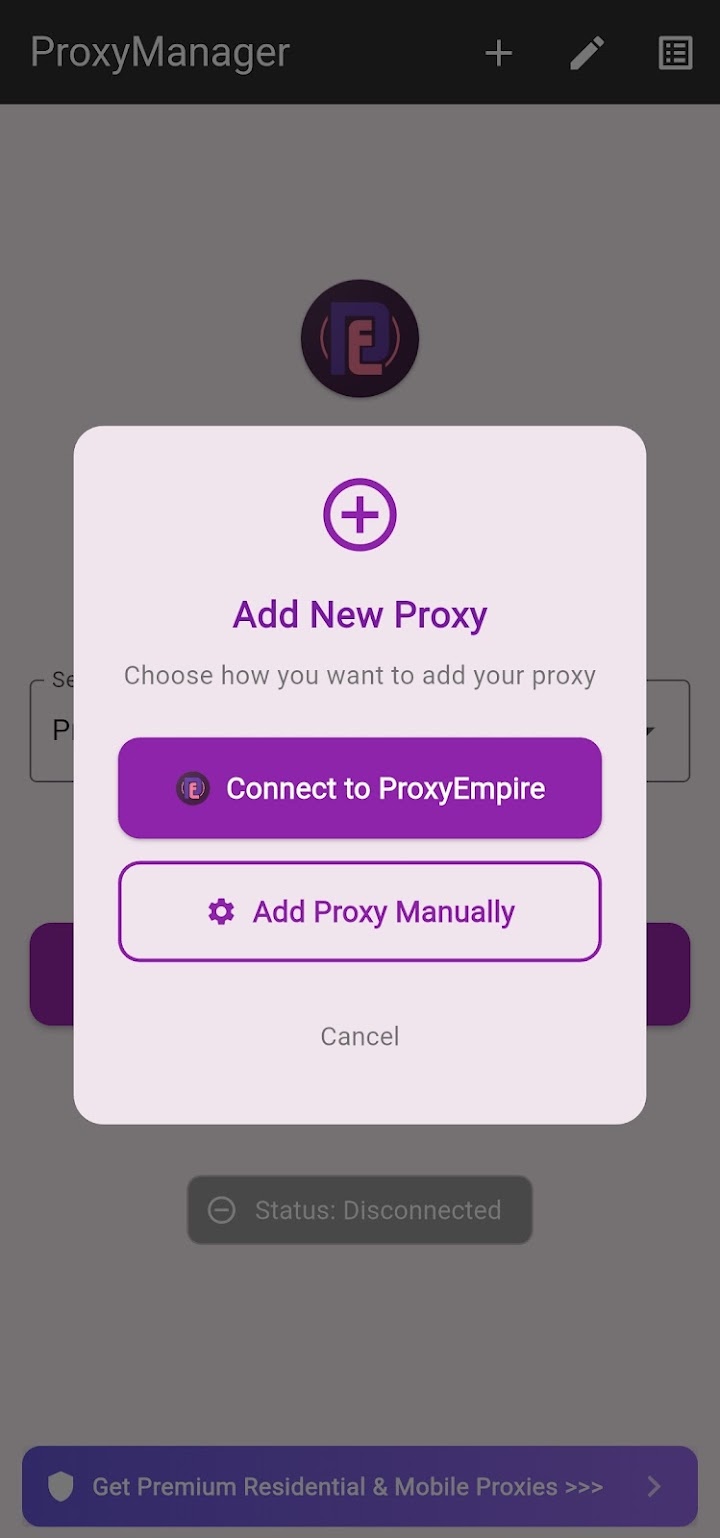
You’ll need an active ProxyEmpire account with bandwidth on it. If you don’t have one yet, the $1.97 trial gives you 100 MB of residential and 50 MB of mobile bandwidth to test with, and whatever you don’t use stays in your account.
Step 3: Choose where your IP should come from
Each profile has its own targeting. Pick a Country, then open Advanced Targeting to narrow it to a Region/State, a City or an ISP. The search icon next to each field helps you find the right entry, and the cross clears it. Only narrow as far as you need to. A small city combined with a specific ISP may have few IPs available.
Under Session Management, the Sticky Session switch decides how your IP behaves:
- Sticky on: the app keeps the same IP for the session. This is what you want for logins, checkouts and anything with several steps. The Session ID field shows a random identifier for the session, and the refresh icon generates a new one when you want a fresh IP.
- Sticky off: you get rotating IPs, which suits checking prices, search results or ads from many addresses.
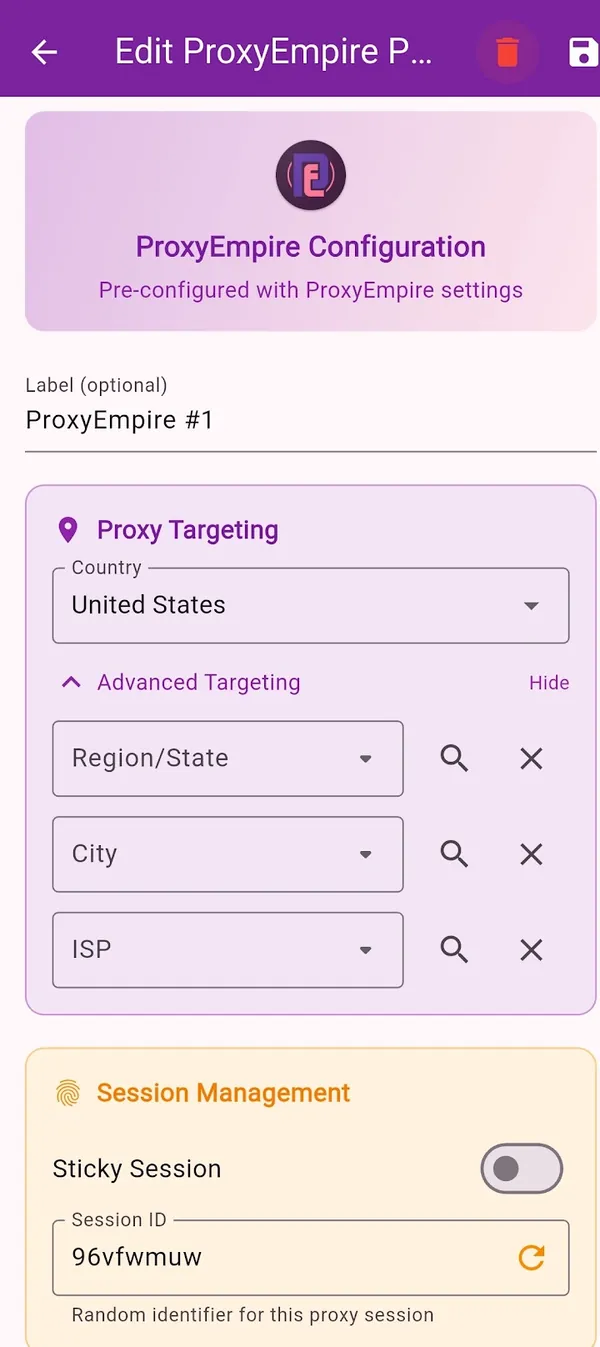
Give the profile a label, such as “US mobile” or “Berlin residential”, and save it. You can keep as many profiles as you like and switch between them in seconds.
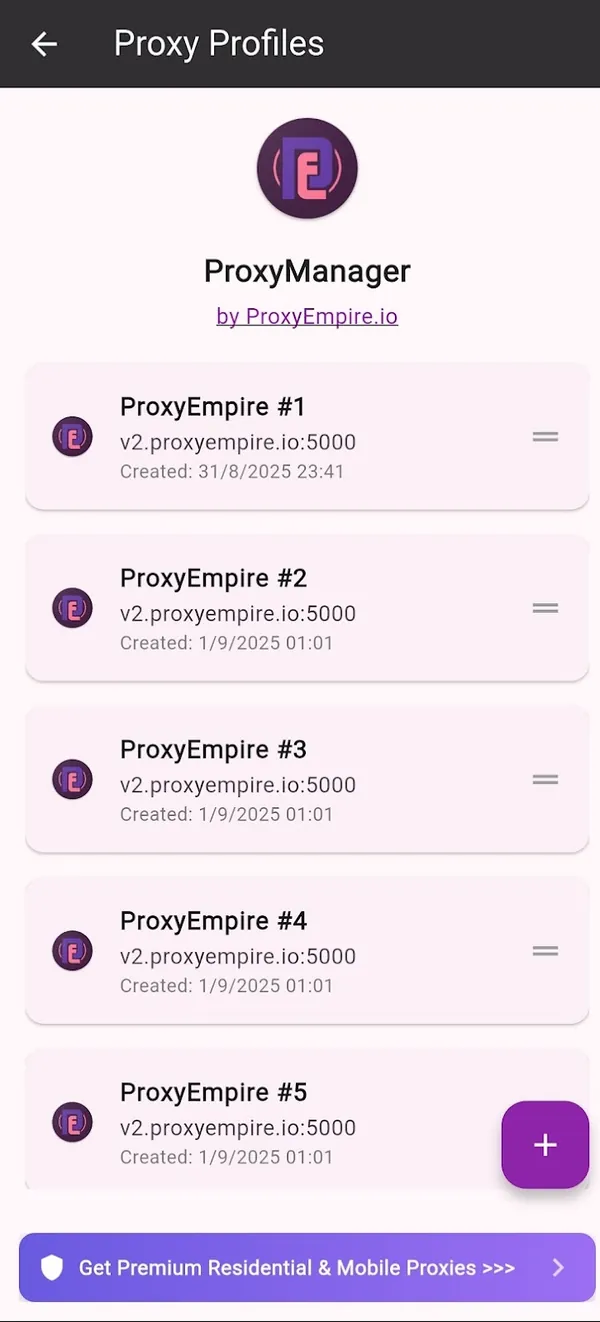
Step 4: Start the proxy
Back on the home screen, pick the profile under Select Profile and tap Start. The first time, Android shows a connection request asking you to allow the app to set up a VPN connection. That is how Android asks permission for any app that uses its VPN service, and it’s required for the app to route traffic. Accept it and the status changes to connected.
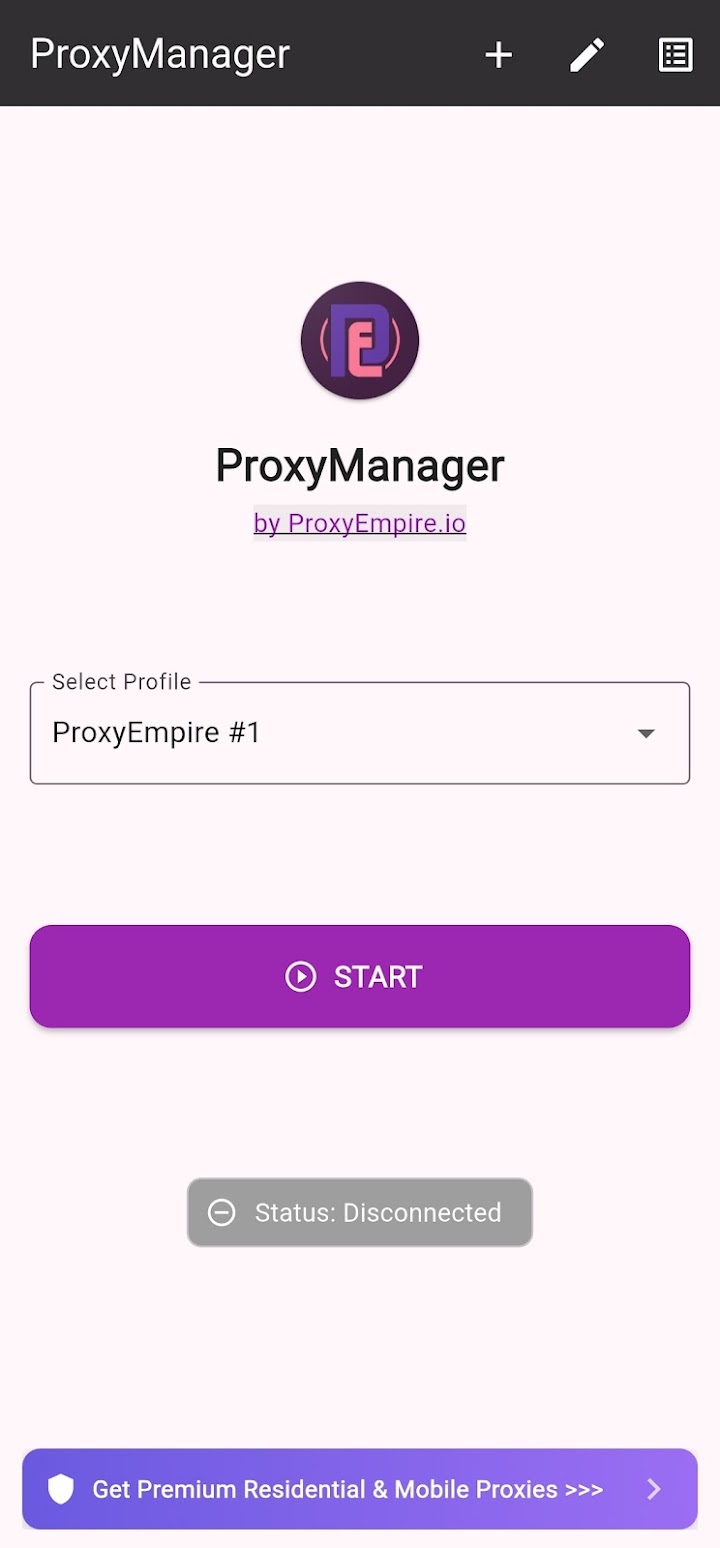
To check that it works, open Chrome and search for “what is my IP”. The address and location should match the country you chose, not your own connection. Then open the app you actually care about and try it.
Good to know
- The app works on Wi-Fi and on mobile data, so switching networks doesn’t drop the proxy.
- You can route every app or only selected apps, which keeps banking and other personal apps on your normal connection.
- ProxyEmpire proxies carry TCP traffic over HTTP, HTTPS and SOCKS5. UDP isn’t supported, so apps that rely on it, such as many online games and voice calls, won’t work through the proxy.
- Your data balance is shared between the app and any other tool you use with the same account.
Method 2: Android Proxy Settings for Wi-Fi
Built in, quick, and limitedEvery Android phone has a manual proxy option in its Wi-Fi settings. It’s attached to one saved Wi-Fi network, so it does nothing on mobile data or on other networks. The exact menu names differ between manufacturers and Android versions, but the path is always Wi-Fi network, then advanced options, then Proxy.
Google Pixel and stock Android
- Open Settings and tap Network & internet, then Internet.
- Tap the network you’re connected to.
- Tap Edit, then open Advanced options.
- Under Proxy, tap the arrow and choose Manual.
- Enter
v2.proxyempire.ioas the proxy hostname and5000as the proxy port. Leave the bypass list empty unless you want some sites to skip the proxy. - Tap Save.
Samsung Galaxy (One UI)
- Open Settings, tap Connections, then Wi-Fi.
- Tap the gear icon next to the network you’re connected to.
- Tap View more (on some versions Advanced).
- Set Proxy to Manual, then enter the hostname and port as above.
- Tap Save.
On Xiaomi, OnePlus, Motorola and other brands the names change slightly, but you’re always looking for the proxy option inside the settings of one Wi-Fi network.
Proxy            Manual
Proxy hostname   v2.proxyempire.io
Proxy port       5000
Bypass proxy for (optional, comma-separated hosts)

Username         -- no field --
Password         -- no field --
The username and password problem
Android’s manual proxy has fields for a host, a port and a bypass list, and nothing else. ProxyEmpire proxies use username and password authentication, and there is no IP whitelisting, so the credentials have to come from somewhere. When you open a page in Chrome, it can show a sign-in box for the proxy, and you type the username and password from your ProxyEmpire dashboard there. Most other apps can’t show that box. They simply fail to connect, often with a vague network error.
That’s why the Wi-Fi method is best kept for quick browser checks. There’s a second catch: your ProxyEmpire username changes when you change targeting, so switching country or city means entering the new username in Chrome again. The app avoids both problems.
Android also offers Proxy Auto-Config in the same menu, which takes the URL of a PAC file instead of a host and port. It’s useful in company networks that publish one. A PAC file doesn’t solve the credentials problem either.
How to turn the Wi-Fi proxy off
Go back to the same network, open the advanced options and set Proxy to None. If a proxy stops working and you can’t load any pages on that Wi-Fi network, check this setting first: a forgotten proxy is one of the most common reasons a single network “has no internet” while mobile data works fine.
A Proxy for One Specific App
Per-app routing needs a VPN-based appAndroid has no built-in way to set a proxy for just one app. The system proxy covers the whole Wi-Fi network, and each app decides for itself whether to use it. The reliable way to proxy one app is through Android’s VPN service, which lets an app choose which other apps are routed through it. Android’s developer documentation describes this directly: a VPN app can add allowed applications, and “if some applications are added, other, un-added applications will use networking as if the VPN wasn’t running.”
ProxyEmpire Proxy Manager uses exactly this. Choose per-app mode, select the apps that should use the proxy, and everything else keeps your normal connection. It’s the right setup when you want a social or shopping app on a mobile IP from another country while your email, maps and banking stay local.
The system proxy is a request to apps. A VPN-based proxy app is a route they can’t skip.
Two practical tips for per-app use:
- Force-stop the app after you change its proxy. Apps that were already open may keep their old connections for a while. Closing and reopening them makes sure they start on the new IP.
- Clear the app’s data when you change location. Many apps remember your region or account state, so switching countries without clearing data can give mixed results. Only do this when you’re sure you can sign back in.
Proxies on Mobile Data
Why the Wi-Fi setting doesn’t follow you outsideThe manual proxy belongs to a single Wi-Fi network. When your phone switches to mobile data, it stops using that proxy. Some phones do show Proxy and Port fields inside the Access Point Names (APN) settings for the SIM, but editing an APN is risky: a wrong value can cut your mobile data, some carriers lock the screen, and the APN’s username and password fields are for the carrier’s login, not your proxy. We don’t recommend it.
If you want the proxy on mobile data, use the app. It runs over whichever connection the phone has, so the proxy stays on when you walk out of Wi-Fi range.
For Developers: ADB and In-App Proxies
Test devices, emulators and your own codeSet a device-wide HTTP proxy with ADB
On a test device or emulator with USB debugging enabled, you can set Android’s global HTTP proxy from a computer. Android documents the underlying setting, Settings.Global.HTTP_PROXY, as a host name and port separated by a colon.
# set it
adb shell settings put global http_proxy v2.proxyempire.io:5000

# check it
adb shell settings get global http_proxy

# remove it
adb shell settings delete global http_proxy
This has the same limits as the Wi-Fi setting: it’s HTTP only, it has no credentials, and apps can still ignore it. It’s handy for testing your own app or a browser on an emulator, not for everyday use. Remember to remove it when you’re done, or the device will keep trying to use it.
Add the proxy in your own app’s code
If you’re building the app, set the proxy in your HTTP client instead of relying on the system. Most Android apps use OkHttp, which takes a proxy and a separate proxy authenticator that answers the proxy’s authentication challenge with your credentials:
import java.net.InetSocketAddress
import java.net.Proxy
import okhttp3.Credentials
import okhttp3.OkHttpClient

val proxy = Proxy(Proxy.Type.HTTP, InetSocketAddress("v2.proxyempire.io", 5000))

val client = OkHttpClient.Builder()
    .proxy(proxy)
    .proxyAuthenticator { _, response ->
        response.request.newBuilder()
            .header("Proxy-Authorization", Credentials.basic("USERNAME", "PASSWORD"))
            .build()
    }
    .build()
Use the username and password shown in the Proxy Manager in your dashboard. Keep credentials out of source control and out of any build you publish, since anyone who has them can spend your bandwidth. For work at scale, such as scraping or automated testing, it’s usually easier to run your code on a server and keep the phone for manual checks.
Mobile or Residential Proxies for Android?
Match the IP type to the jobBoth work with the app and with every method above. The difference is the kind of IP address your traffic comes from.
For most Android use cases, rotating mobile proxies are the first choice, because a phone on a mobile IP looks like what it is. If you need one mobile IP that stays yours for weeks, look at dedicated mobile proxies. Unused bandwidth rolls over on every plan, and uptime is published on our live status page.
Troubleshooting Android Proxy Problems
The fixes for the errors we see most| What you see | Likely cause and fix |
|---|---|
| No internet on one Wi-Fi network only | A manual proxy is still set on that network, or the hostname or port has a typo. Set Proxy to None, or re-enter v2.proxyempire.io and 5000. |
| Chrome keeps asking for a password | The username changed when you changed targeting, or it was copied with a space. Copy both again from the Proxy Manager. |
| Chrome works, but an app doesn’t | The app ignores the system proxy or can’t handle proxy authentication. Use the ProxyEmpire app instead of the Wi-Fi setting. |
| My IP didn’t change | You’re on mobile data with a Wi-Fi-only proxy, or the app isn’t started. Check the status in the app, then check your IP again in the browser. |
| A game or voice call fails | It uses UDP, which ProxyEmpire proxies don’t carry. Exclude that app in per-app mode. |
| Some sites never load | Financial, government and other high-risk sites are blocked on the network, and only ports 80 and 443 are open by default. |
| Everything stopped at once | Your bandwidth ran out. Check the balance in the dashboard and top up. |
If none of these fit, the proxy troubleshooting guide in our docs covers the rest, and the 24/7 live chat is answered by real people who can check your setup with you.
Android Proxy FAQ
Quick answersWhere are the proxy settings on Android?
Inside the settings of each Wi-Fi network. On a Pixel: Settings, Network & internet, Internet, tap the network, Edit, Advanced options, Proxy. On a Samsung: Settings, Connections, Wi-Fi, the gear icon, View more, Proxy. There is no system-wide proxy switch for mobile data.
Is the ProxyEmpire Proxy Manager app free?
Yes, the app is free to install from Google Play. You pay only for the proxy bandwidth you use on your ProxyEmpire account, starting with the $1.97 trial.
Do I need to root my phone?
No. The app uses Android’s standard VPN service, which any app can use once you accept the connection request. The built-in Wi-Fi proxy doesn’t need root either.
Can I set a proxy for one app only?
Not with Android’s built-in settings. Use a VPN-based app with per-app routing, such as ProxyEmpire Proxy Manager, and select only the apps that should use the proxy.
Does Android support SOCKS5 proxies?
The built-in Wi-Fi setting is an HTTP proxy. For SOCKS5, use the ProxyEmpire app, which supports both SOCKS5 and HTTP CONNECT, or set SOCKS5 in your own app’s HTTP client.
Is a proxy the same as a VPN on Android?
No. A VPN encrypts traffic to the VPN provider’s server. A proxy changes the IP address that websites and apps see. The ProxyEmpire app uses Android’s VPN service only as a way to route your apps through your proxy.
Why does my proxy work on Wi-Fi but not on mobile data?
The manual proxy is saved per Wi-Fi network and doesn’t apply to mobile data. Use the app to keep the proxy on across both.
Can I use a proxy for games like Free Fire?
Most real-time games use UDP, and ProxyEmpire proxies support HTTP, HTTPS and SOCKS5 over TCP only. Game traffic won’t go through them, so we don’t recommend proxies for online gaming.
How do I set up a proxy on an iPhone?
iOS has its own steps. Follow our iPhone proxy guide.
References
Sources and documentation- Google Pixel Help — Manage advanced network settings on your Pixel phone (proxy settings). support.google.com/pixelphone/answer/9655181
- Android Developers —
ProxyInfo(how the system proxy reaches HTTP stacks). developer.android.com/reference/android/net/ProxyInfo - Android Developers —
VpnService.Builder(per-app routing with allowed and disallowed applications). developer.android.com/reference/android/net/VpnService.Builder - Android Developers —
VpnService(the user consent step before a VPN app can connect). developer.android.com/reference/android/net/VpnService - Android Developers —
Settings.Global.HTTP_PROXY. developer.android.com/reference/android/provider/Settings.Global - Android Developers —
java.net.Proxy(the proxy type and address passed to an HTTP client). developer.android.com/reference/java/net/Proxy - ProxyEmpire Proxy Manager — Google Play listing. play.google.com/store/apps/details?id=com.proxymanager.proxymanager
- ProxyEmpire docs — What connection protocols do you support? proxyempire.io/docs/what-connection-protocols-do-you-support
Put your Android phone on a mobile IP in minutes
Install the free ProxyEmpire Proxy Manager app, start with the $1.97 trial and test 100 MB of residential and 50 MB of mobile bandwidth, with targeting down to city and carrier, sticky or rotating sessions, and 24/7 support from real people.